You can assign users or user profiles to a visit plan to generate routes for those
users. After you save the visit plan, assigned users receive an email instructing them on how to
generate routes in Salesforce Maps Advanced.
Required Editions
-
Confirm that your rep users are assigned the SF Maps and SF Maps Advanced permission
sets.
-
Confirm that your rep users own one or more routable records as defined in the visit plan’s
datasets. For example, you've assigned a rep as account manager to at least one account
record.
-
On the Maps Advanced Visit Plans tab, in the New Plan wizard, click Assign
Users.
-
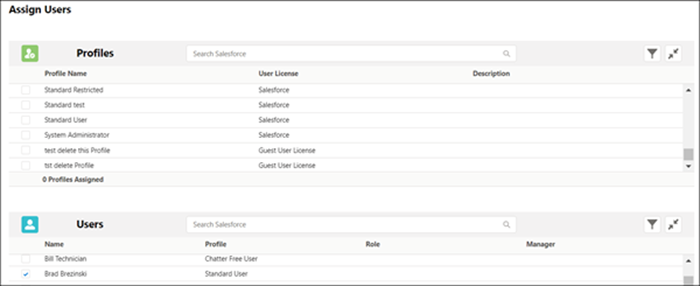
On the Assign Users page, select the user profiles or individual users that you want to
generate routes for.
-
Click Next. Visit plan settings appear in the visit plan
wizard.
After you save the visit plan, assigned users, or users with a selected profile, receive
an email directing them to Salesforce Maps Advanced to update their schedule and generate
routes.