
In Salesforce Maps Advanced, set the route planning period and the number of routes to include when you generate routes. Also, specify how often to regenerate (optimize) routes during the planning period.
Required Editions
- Confirm that you've enabled scheduled batches in Setup. If they're not enabled, then the optimization batches you specify in step 6 don’t run, even when they're shown as enabled in your visit plan.
- On the Maps Advanced Visit Plans tab, in the New Plan wizard, click Define Visit Plan Settings.
-
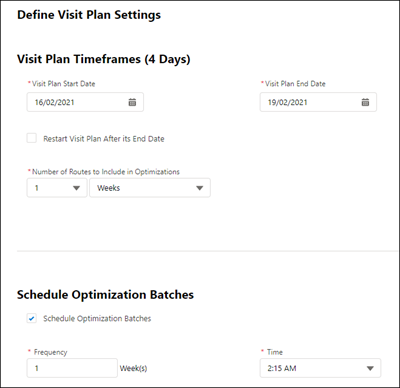
On the Define Visit Plan Settings page, specify the start and end dates for this visit
plan’s timeframe. Your visit plan can span 3 months.
-
If you want the visit plan to generate routes for the same amount of time after the end
date, select Restart Visit Plan After its End Date.
For example, your visit plan timeframe is 90 days. At the end of 90 days, the visit plan timeframe starts a new 90-day period. This 90-day rollover occurs until you deactivate the visit plan.
-
Under Number of Routes to Include in Optimizations, select the number of weeks or months
worth of routes to generate during each optimization.
Salesforce recommends that this time value matches the visit plan duration.For example, use this feature if you want your reps to see 2 weeks of routes, but your visit plan timeframe is for 3 months.
-
Schedule optimization batches to send and receive data to Salesforce Maps Advanced routing.
At the frequency and time that you select, Salesforce Maps Advanced updates route and schedule
data in your visit plan.
For example, you generated routes for your reps last Friday. On Monday, one of your reps decides to take off Tuesday and marks it on the schedule. Because you scheduled optimization batches to run every Monday, routes are automatically updated to move that rep's Tuesday visits to another day.
-
Click Next.
Additional Options appears in the visit plan wizard.