
Tailor routes in Salesforce Maps Advanced when you prevent scheduling more than one visit during a shift and limit the length of shifts. Specify maximum drive time between stops, and choose your preferred speed to optimize non-batched routes. Keep in mind, as a by-product of these constraints, optimizations can be less efficient and deliver fewer routes to reps.
Required Editions
| View supported editions. |
For example, if you specify a 10-minute drive time between stops, it can postpone other customer visits that fall outside that 10-minute drive.
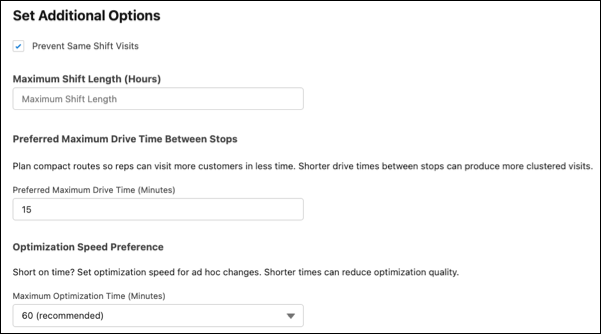
- On the Maps Advanced Visit Plans tab, in the New Plan wizard, click Set Additional Options.
-
To help reps adhere to visit spacing requirements, ensure they visit customers one time
during their shift. Set the option to prevent same shift visits, which is especially helpful
for large volumes of accounts that require frequent visits.
For example, a customer requires daily visits, but the rep travels 2 days a week. This option schedules the rep to visit one time on each of those 2 days instead of scheduling multiple visits to that same customer on each of those 2 days.
-
To prevent reps or managers from scheduling themselves for more hours than allowed, enter
the maximum hours they can schedule each day, including breaks.
For example, you want to set a time buffer that allows reps to complete their visits each day, but you also want to control their overtime. You set Maximum Shift Length to 10 hours. In another example, you want to ensure that part-time employees aren’t scheduled for full days. You set Maximum Shift Length to 5 hours.
-
To reduce total travel time and promote clustering of visits, specify your recommended
drive time in minutes.
For example, your reps have customer locations spread throughout their territories and prefer to drive less between visits during the day. By setting a Preferred Maximum Drive Time Between Stops of 60 minutes, Salesforce Maps Advanced generates routes with customer visits close together, limiting drive time as much as possible.
-
To generate routes faster for non-batched optimizations, such as when a rep clicks
Plan My Visits on the Maps Advanced Route tab, specify your preferred
optimization time.
Setting a maximum time can result in reduced route quality because Salesforce Maps Advanced has less time to find the most ideal routes.
-
Click Next.
Confirm & Save appears in the visit plan wizard.