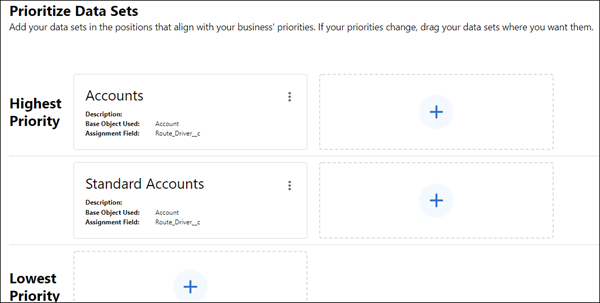
You can prioritize certain customer visits over others, which increases the likelihood
that they’re scheduled sooner and reps meet visit targets earlier. For example, if you have
accounts that have different visit targets than leads, create a separate dataset, and make it the
highest priority.
Required Editions
-
Confirm that you've created at least two datasets in your visit plan. (You can clone an
existing dataset by clicking the three vertical dots next to the dataset and selecting
Clone.)
-
For each dataset, confirm that you've filtered records by a field that indicates
priority. For example, you have a Tier field in your Retail Store routable object. You
create three datasets, each with filter criteria that includes only records with Tier
equal to 1, 2, or 3, respectively.
-
On the Maps Advanced Visit Plans tab, in the New Plan wizard, click
Prioritize Data Sets.
-
Drag datasets to the position that reflects the priority that you want. To make
datasets equal in priority, put them in the same row.
-
Click Next.
Assign Users appears in the visit plan wizard.