
In Salesforce Maps Advanced, specify your visit requirements manually or get them from fields in a routable object.
Required Editions
-
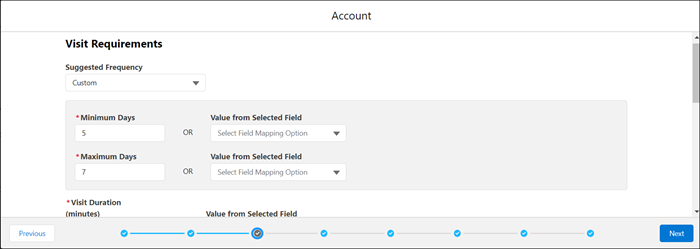
In the dataset wizard, under Visit Requirements, enter the days between visits in
Minimum Days and Maximum Days. As a
shortcut, select a frequency from the Suggested Frequency list.
For example, each account requires three visits over a 90-day period, or one a month. You divide the total days in the period by the number of expected visits, and you set Maximum Days to 30 and Minimum Days to 27.
-
If an object field contains your visit frequency, select the field from
Value from Selected Field. If the field doesn’t contain a value,
then routes use the values in Minimum Days and Maximum
Days.
-
Enter visit duration and buffer time in minutes, or select the field from
Value from Selected Field.
Buffer time is additional time to add to the Salesforce-calculated travel time between visits to account for unexpected delays, such as traffic congestion. Or, time for reps to take notes or walk across large parking facilities.
-
Under Visit Windows, specify the days and times for customer visits for this dataset.
- If a field on your routable object contains your visit window, select that field from the Field Associated to Advanced Visit Windows list.
-
If there are two windows for visits on the same day, you can add a window.
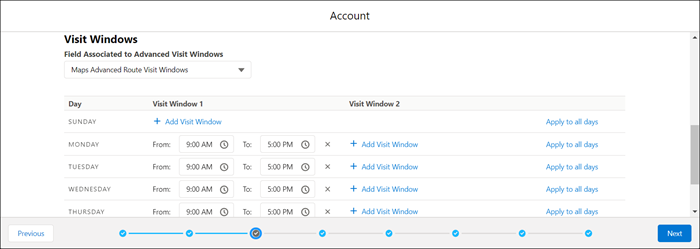 For example, store franchise customers prefer visits from 9:00 AM to 11:00 AM, and then again from 1:00 PM to 4:00 PM.
-
Click Next.
Field filters for future visits appear in the dataset wizard.