
Make it easy and intuitive for your reps to link a visit window to a customer by creating a lookup relationship and a menu option on the record page layout. If reps don't set visit windows at the record level, then Salesforce Maps Advanced uses the visit window in the visit plan when generating routes.
Required Editions
| View supported editions. |
| User Permissions Needed | |
|---|---|
| To customize settings: | Customize Application |

Tip If the same visit window applies to more than one customer location,
consider creating a shared visit window.
- From Setup, in the Quick Find box, enter Object, and then select Object Manager.
- Select the routable object that you want to link visit windows to. For example, the Account object.
- Select Fields & Relationships, and then click New.
- On the New Custom Field page, under Data Type, select Lookup Relationship and click Next.
- From the Related To list, select Maps Advanced Route Visit Windows and click Next.
- On the New Relationship page, specify the custom field label and field name, and then click Next.
- Configure field-level security and other settings, and then save your work.
-
To create another lookup custom field for a customer location with more than one visit
window, repeat steps 1 through 7. For example, if sales reps and merchandisers visit the
same customer location at different times, use two lookup custom fields to represent each
visit window.
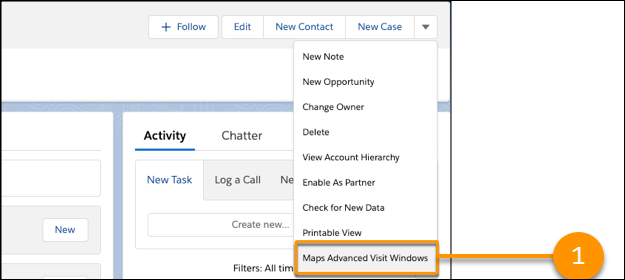
Next you create a custom menu option on the record page layout. Reps select this menu option to link a visit window to a customer location, such as an account.
For example, on a franchise account record, the rep selects a custom menu option to specify a visit window for that franchise location (1).
-
In Object Manager, for the same routable object as in step 1, select Buttons,
Links, and Actions, and then click New Button or
Link.
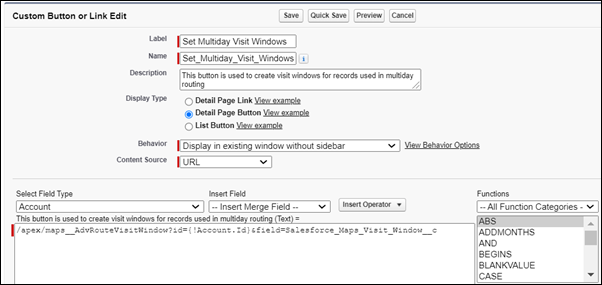
- For Display Type, select Detail Page Button.
- For Behavior, select Display in existing window without sidebar.
- For Content Source, select URL.
-
In the URL box, paste this code and then replace the bracketed text with the
appropriate values.
/apex/maps__AdvRouteVisitWindow?id=[Routable Object Record
            Id]&field=[API Name of the Maps Advanced Route Visit Windows lookup
          field]
For example, your routable object is Retail Store, and the API name of your custom lookup field is Maps_Advanced_Route_Visit_Windows__c. The code in the URL box is:/apex/maps__AdvRouteVisitWindow?id={!RetailStore.Id}&field=Salesforce_Maps_Visit_Window__c - Check your syntax and save your work.
- Add your custom menu option, also known as a custom button, to your routable object record page layout. Then your reps can see and use it on a record detail page to add visit windows.