
As a manager, monitor the progress of your reps’ route optimization by using the Maps Advanced Route Template User object. Verify the last time that your reps' routes were optimized in Salesforce Maps Advanced, and identify errors.
Required Editions
| View supported editions. |
| User Permissions Needed | |
|---|---|
| To customize settings: | Customize Application |
You can create reports and list views from the Maps Advanced Route Template User object. Use these high-level steps to create a central view of all users' route optimizations still in progress.
- In Setup, create a custom object tab based on the Maps Advanced Route Template User object.
- From the App Launcher, find and select your new Maps Advanced Route Template User tab.
-
On the tab, name and enter a new list view to show the route optimization progress. For
example, Routes in Progress.
- Select the fields that you want to show and the sort order. For example, you can show the Maps Advanced Route Template User Name, User, Current Processing Status Bulk, Job Submitted At, and other fields.
- Filter the list view as follows: Current Processing Status Bulk not equal to Available for Submission.
- Save your work.
To troubleshoot errors, use the debug logs. From the App Launcher, find and select Maps Debug Logs. For example, this debug log shows an optimization error that the rep saw in his calendar view.
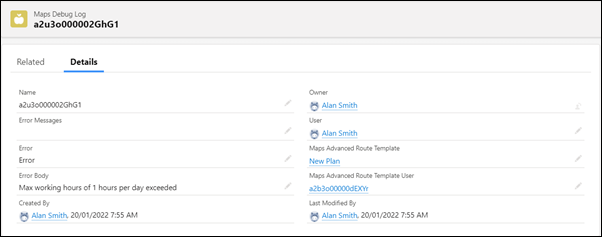
You can create reports and list views based on the Maps Debug Log object.