
To get started in Sales Planning, create a plan and select a data source, then specify product hierarchy, product seasonality, goals, targets, and milestones. Share the plan with other users so your team can collaborate on the planning process.
Required Editions
| Available in: both Salesforce Classic (not available in all orgs) and Lightning Experience |
| Available for an additional cost in: Enterprise, Performance, Unlimited, and Developer Editions with Sales Planning in English only, and only if you have Web Services API enabled |
| User Permissions Needed | |
|---|---|
| To create sales plans: |
One of these:
AND One of these:
|
-
Set up the plan.
- In Sales Planning, click Create Plan.
-
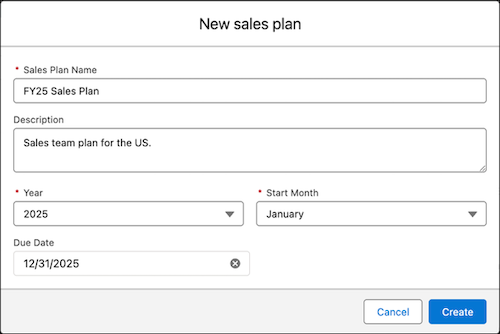
Name your plan and add a description. Select the year and start month,
and specify a due date.
The due date that you enter becomes a milestone in the sales plan. See Track Sales Planning Progress with Milestones.
- Click Create.
-
Associate records with the plan by selecting a data source.
 Note Make sure that you have connected a data source in Sales Planning. See Connect Data Sources to Sales Plans.
-
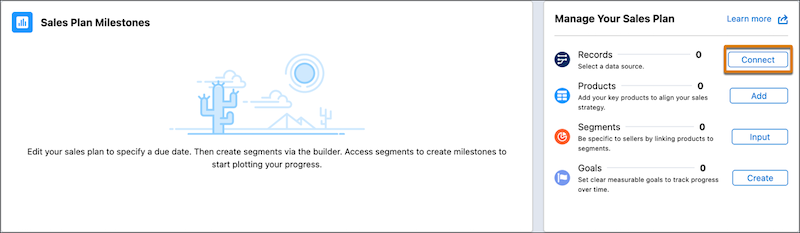
On the sales plan details page, from the Manage Your Sales Plan card, click Connect next to the Records item.
- Select a data source.
-
On the sales plan details page, from the Manage Your Sales Plan card, click Connect next to the Records item.
- Set up the product hierarchy and specify product seasonality. See Set Up Product Hierarchy and Product Seasonality in Sales Planning.
- Identify the goals and measurable targets for each goal. See Identify Goals and Set Targets in Sales Planning.
-
Invite other users to participate in the sales plan.
Users that you add to the plan have these privileges.
- Plan users also have access to every segment, regardless of their assigned permission set.
- You can assign plan users to milestones.
- On the sales plan details page, click Share.
- Search for the users that you want to add, or copy the link to the sales plan so you can share it through other channels.
- Add milestones to the plan. See Track Sales Planning Progress with Milestones.