
The Seller-Focused Mobile Experience UI is simple to navigate, but these unassuming cards have lots of powerful features.
Required Editions
| Available in: Salesforce Mobile App for Android and iOS on phones and tablets in all editions, except Database.com. |
| User Permissions Needed | |
|---|---|
| To use Seller-Focused Mobile Experience | Salesforce Mobile App: Native Seller Experience |
The first thing you notice about the Seller-Focused Mobile Experience is the clean design of the native home page. There, you have easy access to cards containing the Salesforce data you need to prepare for meetings or to make calls. There are cards for Events, To Dos, Leads (Build Pipeline), Accounts (Plan My Accounts), Opportunities (Close Deals), and Contacts (Grow Relationships).
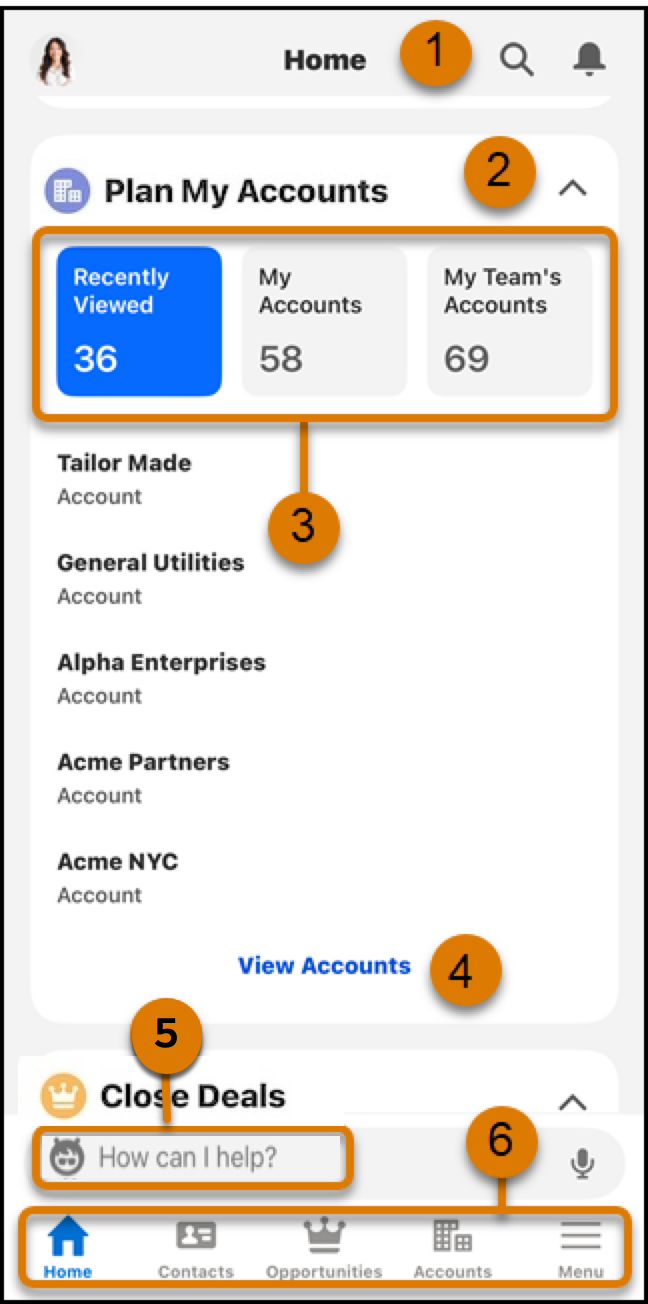
- Search by tapping the magnifying glass icon in the upper right corner. See notifications by clicking the bell (1).
- Collapse or expand any card (2).
- Most cards have 3 boxes that let you filter what’s in the card with just a tap (3). Here, tapping on Recently Viewed in the Accounts card filters the results to just the accounts you've looked at most recently.
- Tapping View Accounts on the Plan My Account card opens a screen with more records, the ability to filter and search, add and delete (4). Look for similar links on the Build Pipeline, Close Deals, Grow Relationships, To Do, and Events cards.
- With an Einstein license, you can ask Einstein anything about the Salesforce data it to which it has access (5).
- Quickly move between Home, Contacts, Opportunities, and Accounts (6). Use the Menu to access other objects, as configured in App Manager.
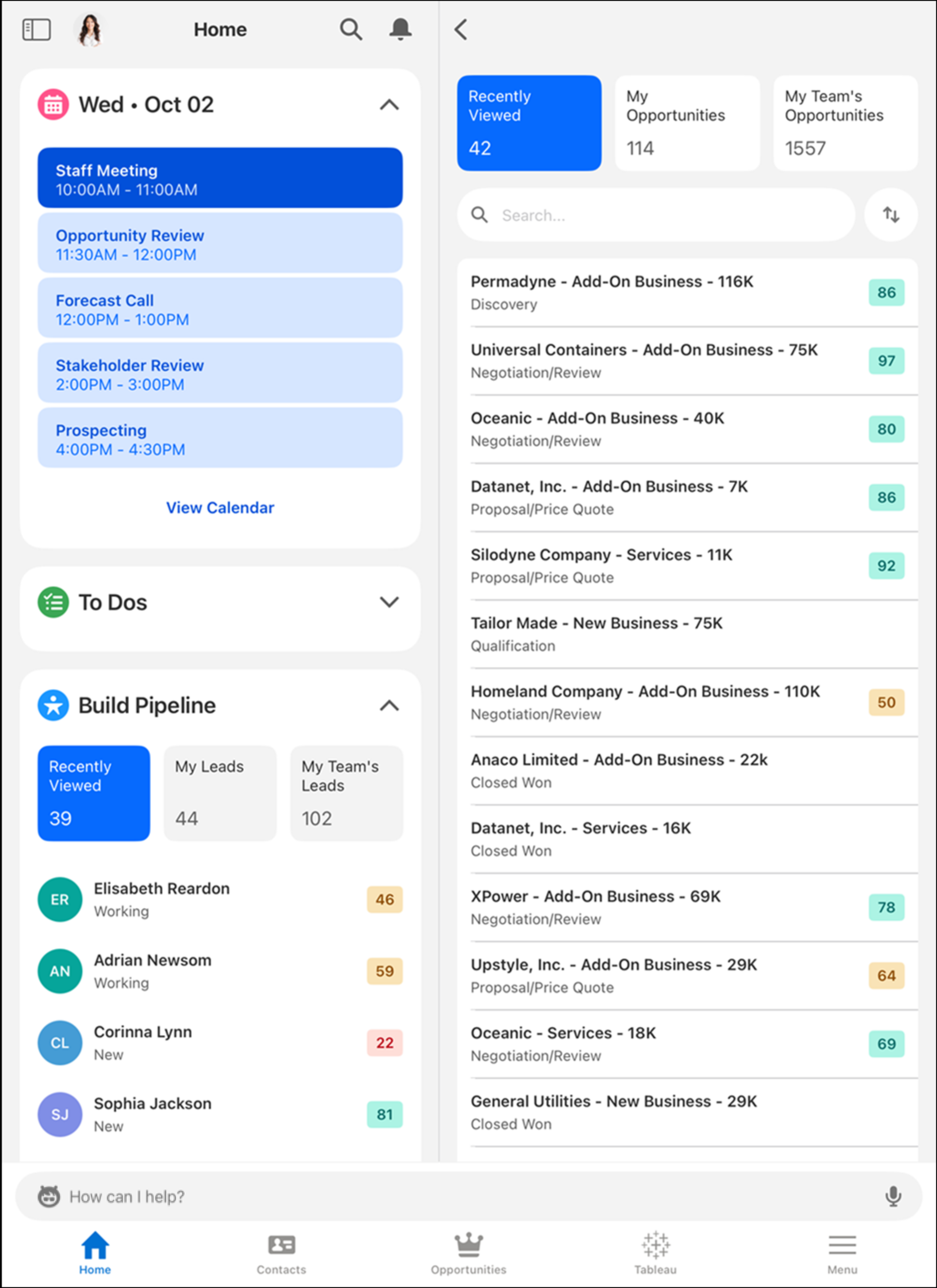
The user interface is optimized for tablets, too, so you can get the most out of Seller-Focused Mobile Experience, no matter what mobile device you use.