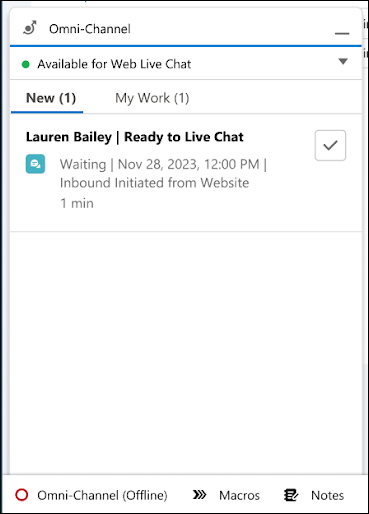
Let your sales team manage conversations and live chat from one place. Create a
Messaging Session record page that contains conversation and customer record components. Then
create a compact layout so your team can see more information about incoming chats in their
Omni-Channel widget.
Required Editions
| Available in: Lightning Experience |
| Available with Sales in Performance and Unlimited
Editions |
| Available with Sales Engagement, which is available in Performance and
Unlimited Editions, and for an extra cost in Professional and
Enterprise Editions
|
| User Permissions Needed |
| To create Lightning pages: |
Customize Application |
| To view Lightning pages: |
View Setup and Configuration |
-
To let your team see their messaging session details in contact records, create a contact
action.
-
For the action type, select Update a Record. And for the standard
label type, select Update [Record].
-
To let team members track their sales conversations easily, create a Messaging Session
record page.
-
For the page template, select Pinned Left Sidebar (2 regions) or
Header and Left Sidebar.
-
In Lightning App Builder, add the Enhanced Conversation component to the left sidebar.
Then add the Highlights component and two Related Records components to the right side of the
page.
-
Select a Related Record component and label it Contact. Then edit the Lookup Field. For
the First Lookup, select Messaging User Contact. And for the Second
Lookup, select Use This Contact.
-
Select the other Related Record component and label it Lead. Then edit the Lookup Field.
For the First Lookup, select Lead. And for the Second Lookup, select
Use This Lead.
-
Assign this page as the app default for Online Sales, Sales, and Sales Console.
-
To see your customer’s name in the Omni-Channel widget and record page, create a custom
Messaging Session field that stores the chatting customer’s name.
-
For the data type, select Formula. And for the formula return
type, select Text.
-
In the Advanced Formula tab, insert the Messaging User Name field. After the field’s API
name, add & ‘ | Ready to Live
Chat’
so that the formula field contains MessagingEndUser.Name &
‘ | Ready to Live Chat’.
-
To show the Messaging Session object in your team members’ Omni-Channel widget, create a
compact layout for the Messaging Session object.
-
Add the custom Messaging Session field you created and the Status, Start Time, and Origin
fields to the layout.
-
Change the primary compact layout to your custom record page.