Apply your own labels to records to help you organize, track, and find the records you
need quickly and easily. Add labels to records related to a region, project, campaign, or anything
else that helps keep work organized. Labels that you add to records are separate from labels added
to To Do List items.
Required Editions
| Available in: Developer, Enterprise, Professional,
Unlimited editions
|
When you add labels to records, you can quickly view all records with a specific label, as well
as the list of labels you've created. Each user creates and manages their own set of labels.
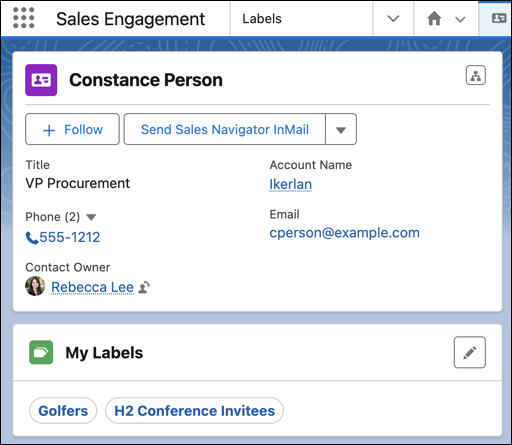
When your Salesforce admin adds the My Labels component to record page layouts, you can see the
labels you've added to a record.
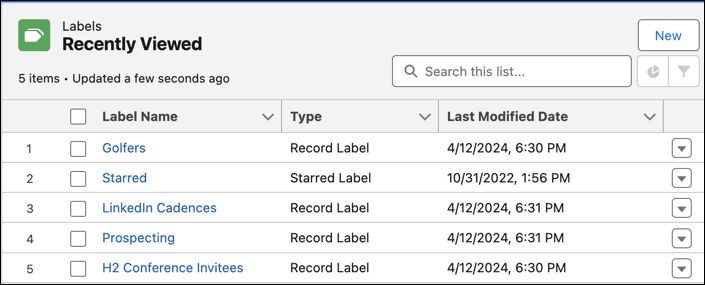
View the list of labels you've created on the Labels home page.
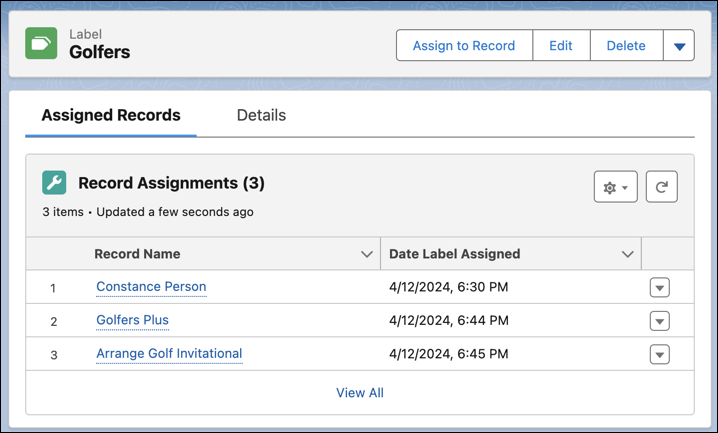
On a label's record page, view the list of records with the label assigned.
You can add labels to records on these objects.
- Account
- Cadence
- Cadence Step Tracker
- Call Script
- Campaign
- Contact
- Case
- Email Template
- Lead
- Opportunity
- Orchestration Work Item
- Task
- Custom objects
Personal labels added to records are separate from Topics, which other users can see.
Each user can create up to 20 labels per object and a total of up to 200 labels. Users can
assign each label to up to 500 records. Record labels are separate from To Do List item labels,
which are limited to 10 per user. Labels don't count against your organization's data storage
limits.
The Label object can't be edited with the Object Manager. The page layout for label records
also isn't editable.