
Get Ready to Sync Contacts with Lightning Sync for Microsoft® Exchange
Learn how to sync contacts between your company’s email application and Salesforce using Lightning Sync.
Required Editions
| Available to sync records from: Salesforce Classic, Lightning Experience, and the Salesforce mobile app |
| Available to set up from: Salesforce Classic and Lightning Experience |
| Available in: Professional, Enterprise, Performance, Unlimited, and Developer Editions with Sales Cloud, Service Cloud, and Lightning Platform |
| User Permissions Needed | |
|---|---|
| To sync contacts both ways: |
Read and Edit on contacts AND Read on accounts, AND contact sync direction set to Sync both ways in an active Lightning Sync configuration |
| To sync contacts from Salesforce to Exchange: |
Read on contacts AND Contact sync direction set to Salesforce to Exchange in an active Lightning Sync configuration |
| To sync contacts from Exchange to Salesforce: |
Create on contacts AND Contact sync direction set to Exchange to Salesforce in an active Lightning Sync configuration |

Starting in Winter ‘21, Lightning Sync isn’t available to new Salesforce customers. Use Einstein Activity Capture to sync events, contacts, and emails between your connected account and Salesforce.
If you have Lightning Sync, use the migration tool to move to Einstein Activity Capture before Lightning Sync retires in 2027. Before you migrate, review Compare Einstein Activity Capture and Lightning Sync to understand what to expect when you migrate.
If your org is exempt from migration because of a licensing issue or if your org doesn’t support Einstein Activity Capture, you won’t see the migration tool in Lightning Sync.

After your administrator initiates contacts sync for you, Lightning Sync creates a folder in your email application called Salesforce_Sync. You can find the Salesforce_Sync folder under your contacts directory. Any contacts that have synced from Salesforce to your email application are in Salesforce_Sync. Don’t rename, move, or delete the Salesforce_Sync folder, or syncing between Salesforce and your email application stops.
-
Ask your administrator which direction you’re set up to sync.
- If you’re set up to sync from Salesforce to your email application only, syncing is already in progress, and you don’t have to do anything else. Soon you can access your Salesforce contacts directly from your email application.
- If you’re set up to sync from your email to Salesforce or to sync both ways, it’s time to move the contacts that you want to sync into the Salesforce_Sync folder.
-
In your email application, select the contacts you want to sync. You can select multiple
contacts at a time.
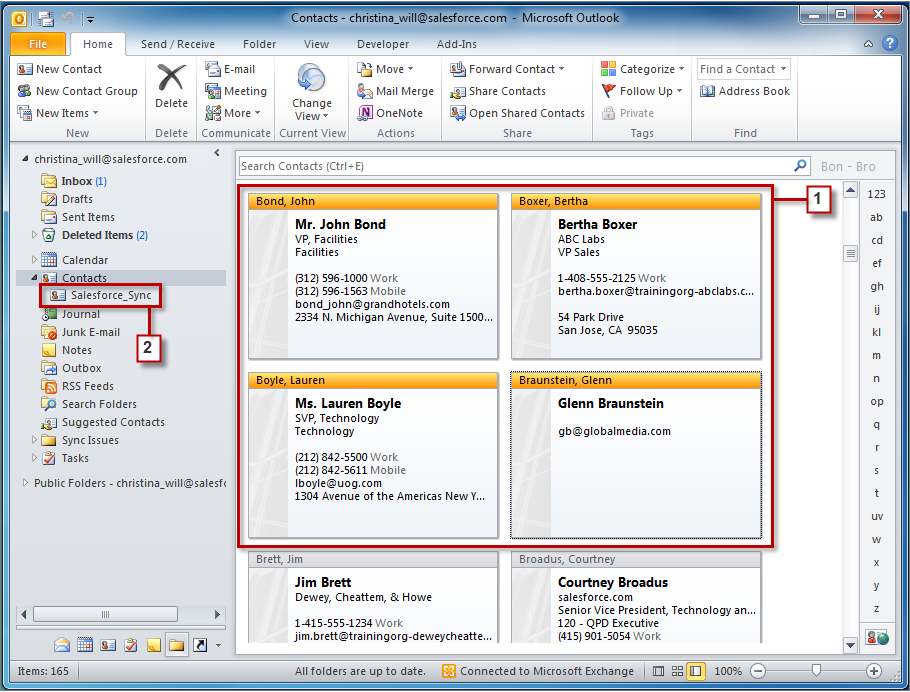
- Move—do not copy—your selected contacts to the folder Salesforce_Sync. If you copy your contacts, you get duplicates, which are a hassle!
The contacts you move to the Salesforce_Sync folder begin to sync every few minutes. If you move numerous contacts to Salesforce_Sync, your first sync can take some time.