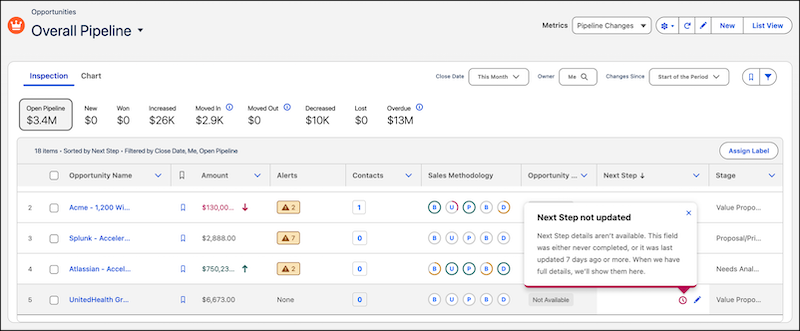
Spot deals that need attention and summarize metrics the way you track sales with a single, consolidated view of your pipeline. You can apply filters, save views, and zero in on highlighted changes to key opportunity fields.
Required Editions
| View supported editions. |
 Ensuring Sales Rep Accountability with Pipeline Inspection (English Only)

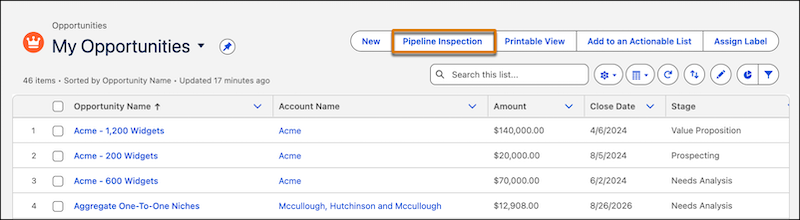
Access Pipeline Inspection from the Opportunities list view.
Configure Your Pipeline Inspection View
Your Salesforce admin sets which list view you see the first time that you open Pipeline Inspection. You see either My Pipeline or the public list view that’s first alphabetically. Switch to another view at any time, and filter your view multiple ways.
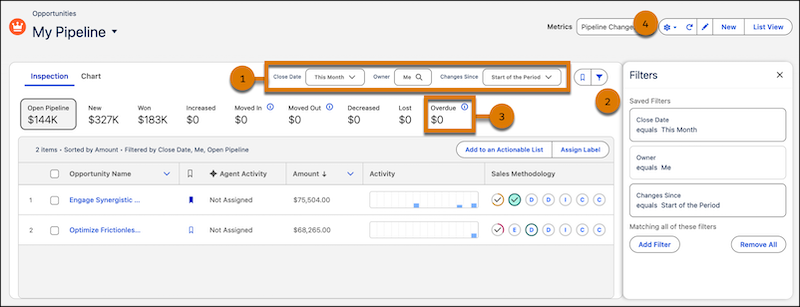
Use the quick filters (1) to narrow the view by time period, sales rep, team, or territory. Quick filters change your view for the current session. To get an even narrower view of your pipeline, use the filter panel (2) to add more criteria, such as accounts, amounts, and stages. Unlike the quick filters, these filters apply to your list views until you remove them. For example, each time that you return to My Pipeline, the view is based on the filters that you saved in the filter panel.
The pipeline metrics (3) also act as filters. When you select a metric, a list of matching opportunities is shown. To create, clone, rename, and delete custom pipeline views, click the gear icon (4).
Select Pipeline Metrics
View and filter your pipeline from different perspectives by using metric groups, such as Forecast Category or Pipeline Changes. You can also summarize metrics by Amount, Quantity, Expected Revenue, or a custom currency or number field. For more information, see Pipeline Inspection Metrics and Fields and Set or Change the Summary Field for Pipeline Inspection Metrics.
Customize Your Pipeline Inspection View
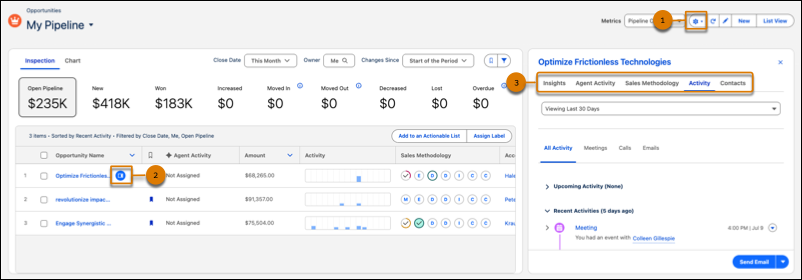
The default Pipeline Inspection views show preselected fields as columns. Choose the fields that you want to include from the gear icon (1). Some fields are available only if your admin has set up the prerequisite features. See Pipeline Inspection Metrics and Fields.
Open the Pipeline Inspection side panel (2) to dig into the details. For example, the Insights tab of the side panel lists AI insights from call recordings, emails, service cases, and other sources. It also shows a snapshot of opportunity metrics. The Activity tab (3) shows recent and upcoming activities and aggregate activity counts.
Mark Opportunities as Important
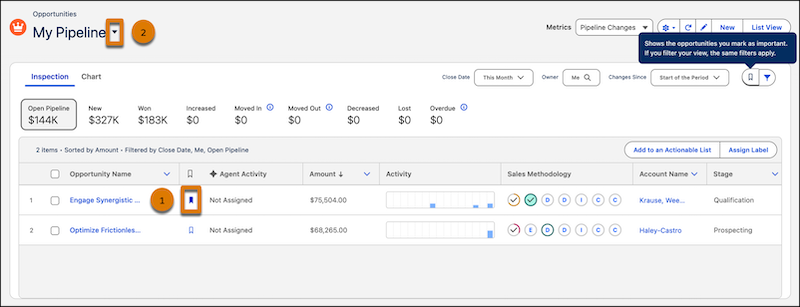
To track your priority deals, click the bookmark icon (1) next to the opportunity name to mark it as important. Go to the My Important Opportunities view dropdown to see all opportunities that you marked as important. The important opportunities filter (2) narrows any other saved view to just its important opportunities.
Edit Opportunities Inline
To keep your opportunities accurate, edit fields inline as you review your pipeline. You can edit the Amount field on opportunities without products in pipeline views. You can edit opportunities of multiple record types inline in the same list view. Hover over an editable field and click the pencil icon.
Review Recent Opportunity Changes
The opportunity list highlights changes from the previous 7 days. Changes to amounts, close dates, forecast categories, and stages appear in red and green text and arrows. Opportunities with no updates to the Next Steps field in 7 days or more are flagged with a red clock icon. Hover over a changed field to see more insights, such as what changed, when, and who made the change.