
Create Records Directly from the Salesforce Side Panel in Salesforce for Outlook (Retiring)
Before the Salesforce for Outlook side panel action menu was retired in Summer ’21, reps could create different kinds of records directly from the side panel in Microsoft® Outlook®. To continue creating records from Outlook, migrate to the Outlook integration.
Required Editions
| Available in: Salesforce Classic |
| Available in: Lightning Experience, if Salesforce Classic is available in your org. |
| Available with the purchase of Sales Cloud or Government Cloud in: Personal, Contact Manager, Professional, Enterprise, Performance, Unlimited, and Developer Editions |
| User Permissions Needed | |
|---|---|
| To display the Salesforce Side Panel: | Side Panel in Outlook configurations |
| To create records from the Salesforce Side Panel: | Create and Read on all objects that users create records from AND Visible on all required fields in records that users create |

Important Full product retirement for Salesforce for
Outlook is scheduled on January 30, 2027. See Salesforce for Outlook Retirement. To keep
integrating Microsoft Outlook with Salesforce, check out our next-generation products: the
Outlook integration and Einstein Activity Capture. See Move from
Salesforce for Outlook (Retiring) to the Next-Generation Products.
Important Full product retirement for Salesforce for
Outlook is scheduled on January 30, 2027. See Salesforce for Outlook Retirement. To keep
integrating Microsoft Outlook with Salesforce, check out our next-generation products: the
Outlook integration and Einstein Activity Capture. See Move from
Salesforce for Outlook (Retiring) to the Next-Generation Products.
Depending on how your administrator set up your action menu, you can create accounts, cases, contacts, leads, opportunities, and other types of records customized for your organization—directly from the side panel.
-
Select an email in Outlook, then click
 .
You’ll see something like this.
.
You’ll see something like this.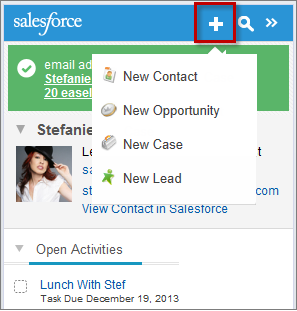
-
Choose an action.
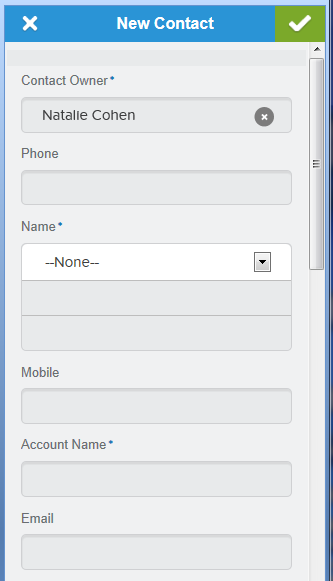
The actions available to you depend on the ones your administrator set up, such as New Contact.
-
Complete the record detail by providing relevant details.
-
Click
 to save the record.
Keep in mind that email attachments aren’t included in the created records.
to save the record.
Keep in mind that email attachments aren’t included in the created records.