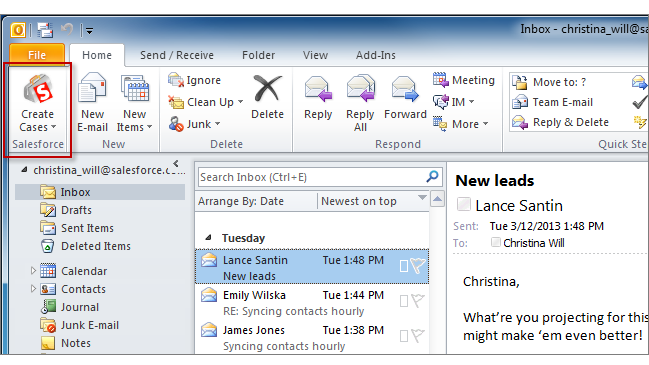
If you track cases in Salesforce, you can create ones from your Microsoft®
Outlook® emails. Your administrator needs to first create Email-to-Case destinations
that appear in the dropdown list button Create Cases in Outlook. For
each destination, you can choose the assignee, which can be either individual users or
queues. When you create cases, you can add up to ten emails simultaneously for each
destination.
Required Editions
| Available in: Salesforce Classic
|
| Available in: Lightning Experience, if Salesforce Classic is available in your org. |
| Available with the purchase of Sales Cloud or Government Cloud in: Personal,
Contact Manager, Professional, Enterprise, Performance,
Unlimited, and Developer Editions
|
| User
Permissions Needed |
| To include email attachments when you create cases: |
Always save email attachments in your Email to Salesforce
settings
AND
Add Email in your Salesforce for Outlook
Configuration
|
If you don’t see the Create Cases dropdown list button
in Microsoft® Outlook®, contact your administrator, who can enable this feature.
-
In Outlook, select up to 10 sent or received emails and
click Create Cases.
-
Select a destination from the dropdown list. Salesforce for Outlook adds the emails you
selected as a case in Salesforce.