
Your subdomain is used in the URL where learners access your published trails and modules and where your authorized users log in to the Trailmaker apps. A subdomain name is an extension of your company’s brand. When you create your subdomain, you also create your company’s first content collection—a batch of content that you want to make available to certain learners. Later, you can create more content collections in Salesforce.
Required Editions
| Available in: Enterprise, Performance, and Unlimited Editions |
| User Roles and Permissions | |
|---|---|
| Enablement Site User Roles | |
| This topic supports these enablement site roles: | Salesforce Admins |
| Required System Permissions | |
| To create a subdomain and initial content collection: | Manage Site Settings |
-
Go to the Site Setup page at https://trailhead.salesforce.com/en/subdomain, and log in with your Salesforce
username and password.
 Note To access this page, your user record in Salesforce must have the Manage Site Settings permission enabled.After you log in, the Site Setup page shows options for configuring your subdomain and content collection.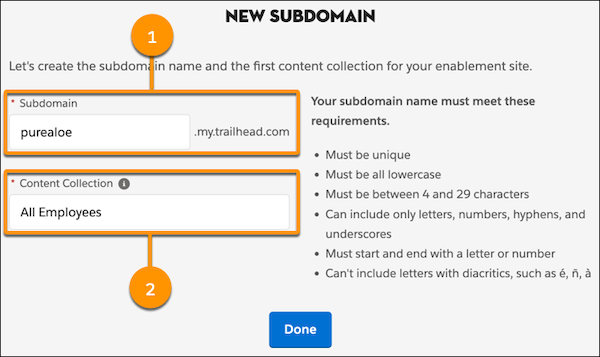
-
Enter a name for your subdomain (1).
The subdomain name must:
- Be unique among all enablement sites.
- Use only lowercase letters.
- Use only letters, numbers, hyphens, or underscores.
- Start and end with a letter or number.
- Use at least 4 characters and no more than 29.
 Tip For consistency, we recommend that you use your My Domain name as your enablement site’s subdomain. For example, if your org’s My Domain name is
purealoe, specifypurealoeas your subdomain. The full URL to access your enablement site becomes https://purealoe.my.trailhead.com.Don’t know your org’s My Domain name? See the My Domain page in Setup.
-
Enter a name for your first content collection (2).
The content collection name can:
- Include uppercase and lowercase letters.
- Include letters, numbers, spaces, hyphens, underscores, and other characters.
- Use at least 4 characters and no more than 80 characters.
-
Click Done, and then confirm your subdomain and content
collection name.
 Important After you create your subdomain, you can change it only by submitting a Salesforce Customer Support case. For content collections, you can rename, create, or delete them in Setup.
 - When the Site Setup page shows your subdomain, click Next to select your enablement site’s authentication provider.