
When you paste content into Trailmaker Content from your draft, Trailmaker also copies images included in the draft. You can also manually insert images or modify image properties in Trailmaker Content. For a video, you can only insert a link to the video’s embed URL from an external content delivery network.
Required Editions
| Available in: Enterprise, Performance, and Unlimited Editions |
| User Roles and Permissions | |
|---|---|
| Enablement Site User Roles | |
| This topic supports these enablement site roles: | Content Creators |
| Required System Permissions | |
| To create and edit content with Trailmaker Content: | Create Content |
-
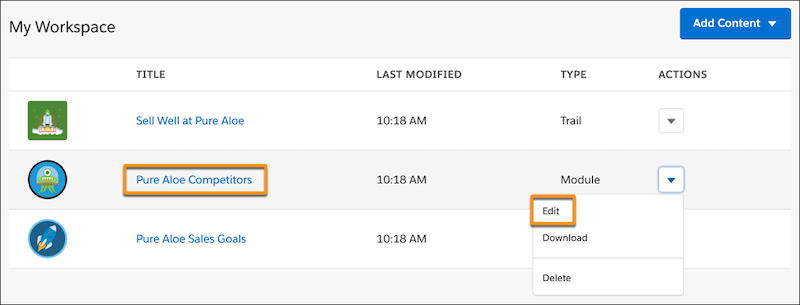
In the Trailmaker Content workspace, click a module title (1). Or, select
Edit from the Actions menu for a module (2).
-
On the module page, click a unit title or select the edit icon
 for the
unit that you want to open.
for the
unit that you want to open.
-
To insert an image, put your cursor where you want the image to appear.
-
In the formatting toolbar, click the image icon
 .
.
- Click in the Drop image (or click) field and navigate to an image file. Or, drag an image file into that field.
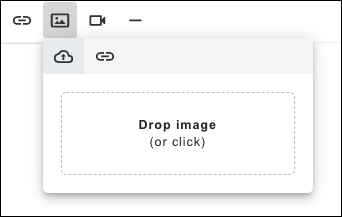
To add an image by URL, click the link icon in the add-image window, enter the URL, and click Insert.
 Note For information on recommended image sizes and supported file types, see Guidelines for Images, Screenshots, Badge Art, and Trail Icons.
 -
In the formatting toolbar, click the image icon
-
To insert a video, put your cursor where you want the video to appear.
-
In the formatting toolbar, click the video icon
 .
.
-
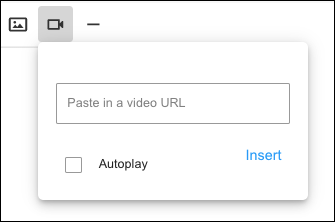
Enter the video’s secure embed URL, and be sure to include the
https:// protocol.
Note The embed URL isn’t necessarily the same path as the URL where the video is accessed. To learn more, see the Salesforce Knowledge article, Add video to your myTrailhead content.
- Click Insert.
-
In the formatting toolbar, click the video icon
To resize a graphic or video, grab the handles on its corner. Or, click an image or video and use the mini toolbar to adjust its display position, alignment, or size. You also can add a caption below the image.
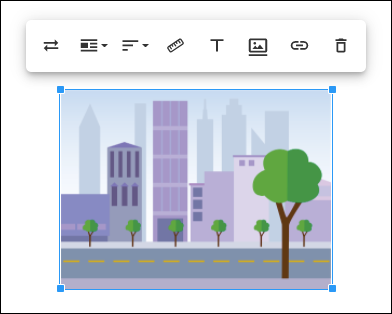
Most images, such as screenshots, photos, and graphics, appear as block elements, which display on their own line. To position small images, such as icons within a line of text, select the image and set these image properties.
- Click the display icon
 , and select Inline.
 - Click the align icon
 , and select None.