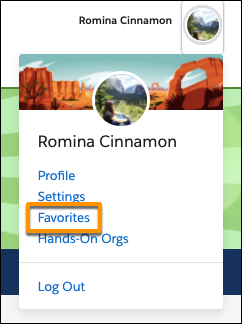
Learners can quickly find or search for content, including in-progress content, assigned content, or content marked as favorite.
Required Editions
| Available in: Enterprise, Performance, and Unlimited Editions |
| User Roles | |
|---|---|
| This topic supports these enablement site roles: | Learners |
Today Page
The Today page provides easy access to a learner’s content.
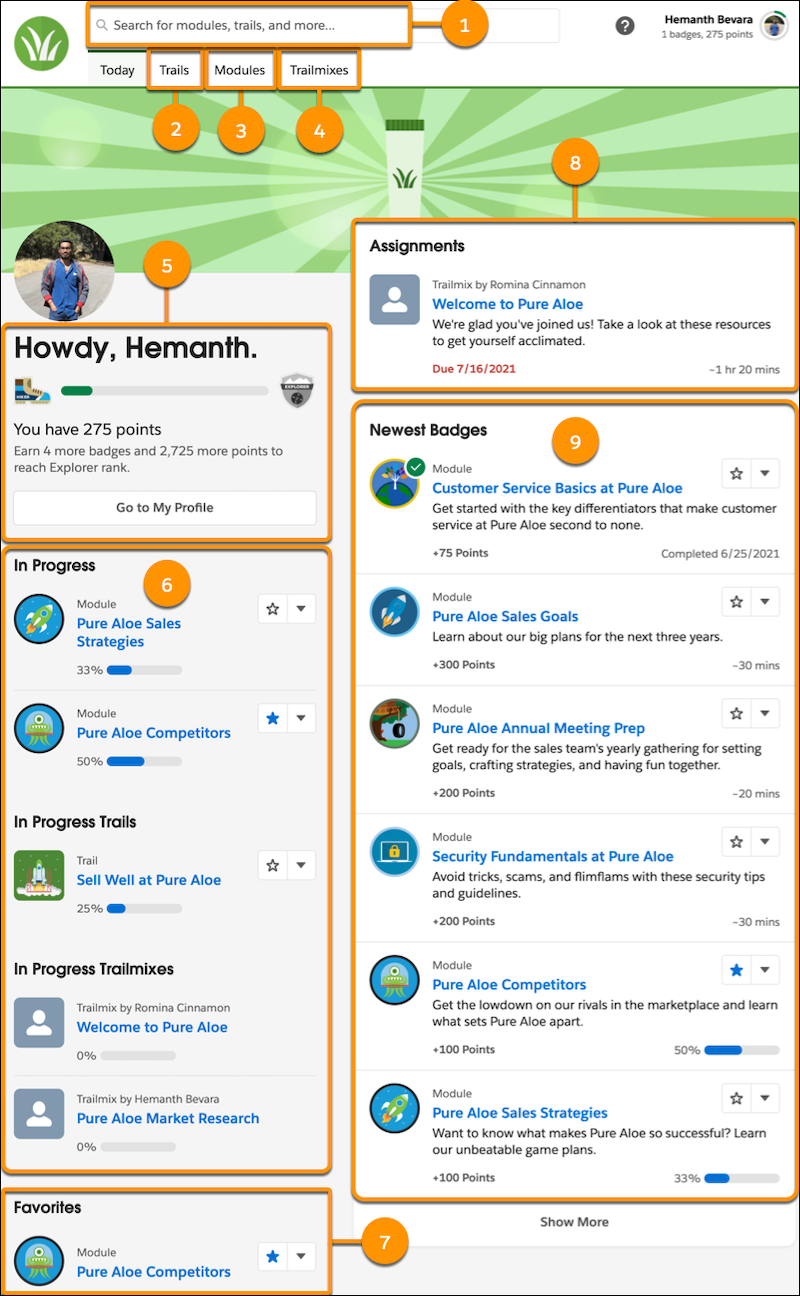
- A search box (1) that returns trails, modules, and more that match a search term. A user can then filter results by role, experience level, product, or content type. A user can also sort results by relevance, newness, point total, or time to completion.
- The enablement site menu bar that provides links to index pages of the trails (2), modules (3), and trailmixes (4) that the user can access.
- A progress indicator shows a user’s points and status toward achieving the next rank on
their profile (5).
 Note The progress indicator is available only for enablement sites that uses Trailblazer.me (TBID) as their authentication provider. If your enablement site usesSalesforce Identity for Enablement as its authentication provider, the progress indicator isn’t available.
 - Up to three in-progress modules, three in-progress trails, and three in-progress trailmixes (6).
- Up to three favorites (7).
- Up to three trailmixes assigned from the Trail Tracker app (8).
- Up to six of the newest modules (9).
Search Results
A user can search content by keyword.
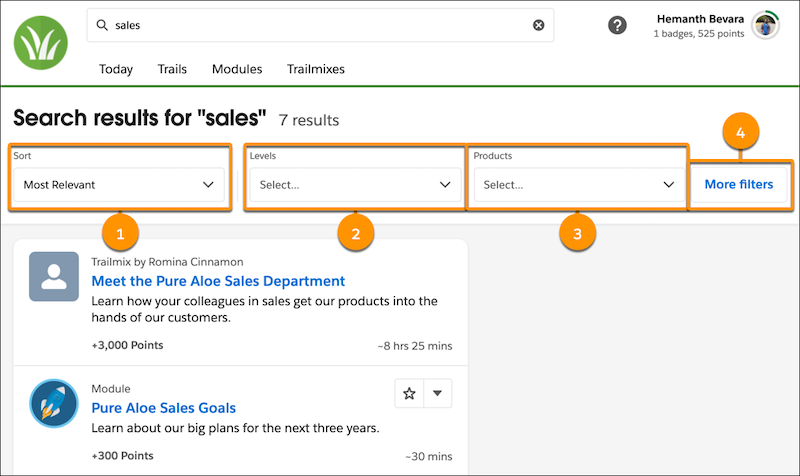
A user can sort (1) the results by these criteria:
- Relevance
- Points total
- Time to completion
- Newness
A user can also filter the results by these criteria:
| Filter | How a User Applies the Filter |
|---|---|
| Experience level | Select a filter from the Levels dropdown (2) |
| Product | Select a filter from the Products dropdown (3) |
| Role | Click More filters (4) and select a filter from the Roles dropdown |
| Content type: module, trail, or trailmix | Click More filters (4) and select a filter from the Content Type dropdown |
Trails, Modules, and Trailmixes
From the index page for trails or modules, a user can filter the content shown by:
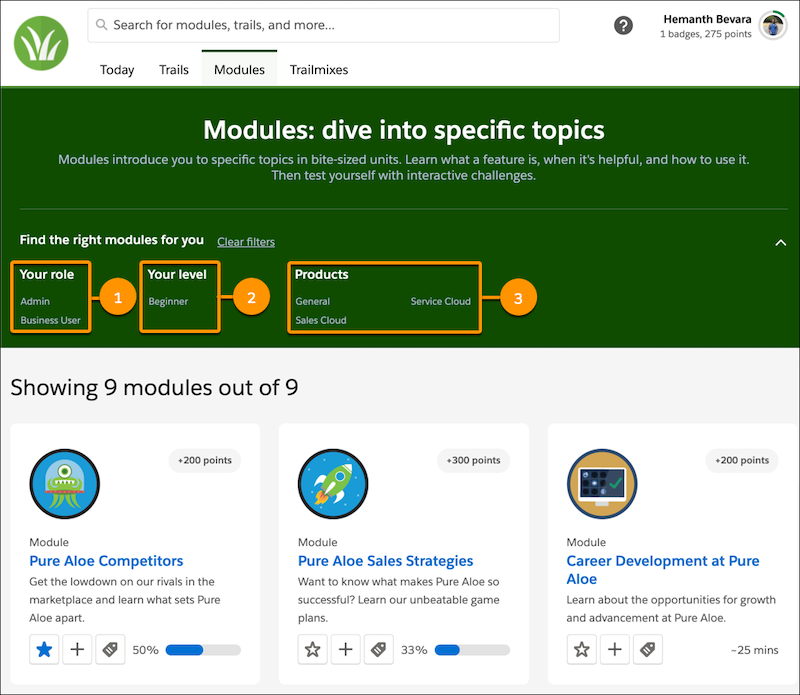
- Role (1)
- Experience level (2)
- Product (3)
From the index page for trailmixes, a user can find:
- Trailmixes assigned from the Trail Tracker app, including the due date.
- In-progress trailmixes.
- Trailmixes that the user created.
Favorites
A user can also find content that they marked as a favorite by clicking their avatar and selecting Favorites from the dropdown menu.