
Ensure that your company’s content writers, publishers, and other stakeholders can access the features that are relevant to their specific roles. Create permission sets for the different publishing roles at your company, enable the permissions that correspond to the features they use, and assign the appropriate users.
Required Editions
| Available in: Enterprise, Performance, and Unlimited Editions |
| User Roles and Permissions | |
|---|---|
| Enablement Site User Roles | |
| This topic supports these enablement site roles: | Salesforce Admins |
| Required System Permissions | |
| To create or edit permission sets: | Manage Profiles and Permission Sets |
| To assign permission sets: |
Assign Permission Sets AND View Setup and Configuration |
For example, let’s say that you want to create a permission set for writers who prepare content for publication. Most likely, writers require only the Create Content and Preview Release permissions. The other available permissions aren’t applicable to their role at the company.

Note For information about all permissions that you can enable, see Enablement Site Permissions List.
-
Create a permission set for one of your company’s publishing roles.
- From Setup, in the Quick Find box, enter Permission Sets, and then select Permission Sets.
- Click New.
-
Enter a label and a unique API name for the permission set.
For example, if you’re creating a permission set for your content creators, name the permission set Enablement Site Content Creators.
-
For License, select Enablement Sites (myTrailhead),
Sales Enablement, or
myTrailhead—depending on which name you see in your
org—and save your changes.
Note The license name has changed with different Salesforce versions, but the license behavior remains the same, and allows you to enable specific permissions for your enablement site.
-
On the Permission Set Overview page, select System
Permissions.
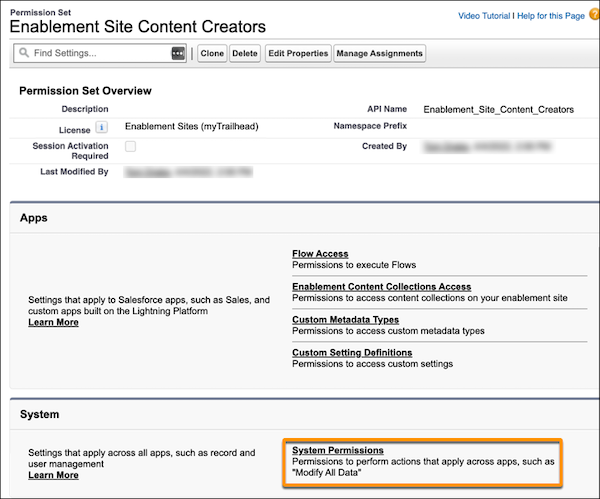
- Click Edit.
-
Select the permissions that you want to include in the permission set, and save your
changes.
For the Enablement Site Content Creators permission set, select Create Content and Preview Release.
-
Assign the appropriate users to the permission set.
- From Setup, in the Quick Find box, enter Users, and then select Users.
- Select a user.
- Scroll to the Permission Set Assignments section of the user details, and click Edit Assignments.
-
Select the permission set that you created for the user’s role.
To add a writer to the Enablement Site Content Creators permission set, select Enablement Site Content Creators, and add it to the list of enabled permission sets.
- Save your changes.
 Tip Alternatively, you can start from the permission set and add multiple users. On the permission set’s overview page, click Manage Assignments. Select all the users that you want to add, and then click Add Assignments.Note When you change a user’s permissions, the change takes a few minutes to take effect.