
Ensure that learners can access only the trails and modules that are relevant to their disciplines or job requirements. Create content collections for your different audiences, and then use permission sets to enable access to specific content collections. Only learners with permission to access a particular content collection can view and complete the trails and modules included in the collection.
Required Editions
| Available in: Enterprise, Performance, and Unlimited Editions |
| User Roles and Permissions | |
|---|---|
| Enablement Site User Roles | |
| This topic supports these enablement site roles: | Salesforce Admins |
| Required System Permissions | |
| To access the Content Permissions Assistant page in Setup: | View Setup and Configuration |
| To create, edit, or delete content collections: | Manage Content Collections |
| To create or edit permission sets: | Manage Profiles and Permission Sets |
| To assign permission sets: |
Assign Permission Sets AND View Setup and Configuration |

Tip These steps are also described in your Salesforce org. From Setup, in the Quick
Find box, enter Enablement, and then select Content
Permissions Assistant. The Content Permissions Assistant page provides a guided
workflow for updating permissions, creating content collections, and assigning users.
-
Make sure that the right users—admins or content creators—have the
appropriate permissions for maintaining content collections.
- From Setup, in the Quick Find box, enter Permission Sets, and then select Permission Sets.
-
Select the permission set that you want to update.
 Note Or, create a permission set by clicking New. For License, select Enablement Sites (myTrailhead), Sales Enablement, or myTrailhead—depending on which name you see in your org—and save your changes. The name has changed with different Salesforce versions, but the license behavior remains the same, and allows you to enable specific permissions for your enablement site.
 -
Select System Permissions.
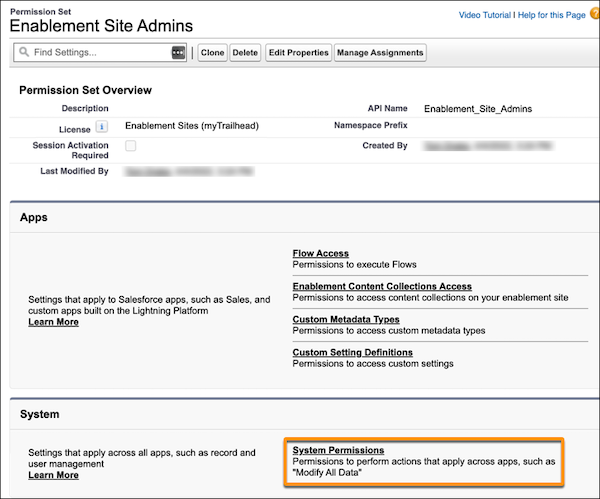
- Click Edit.
-
Select Manage Content Collections and View All
Content, and save your changes.
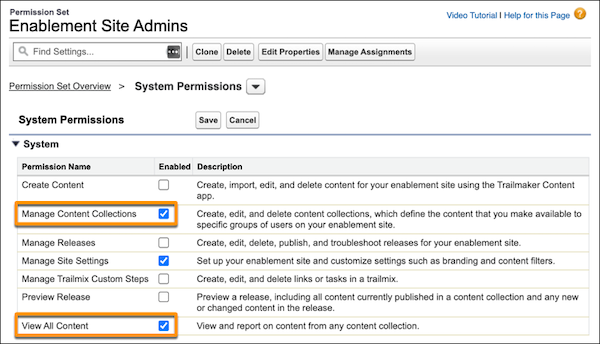 Note For information about all permissions that you can enable, see Enablement Site Permissions List.
 - Save again, and confirm your changes.
- Refresh your browser tab.
-
Create the empty content collections for your different audiences.
Each content collection is a record that you create in Salesforce and is initially an empty container. Later, your publishing team assigns trails and modules to a content collection from Trailmaker.
-
From Setup, in the Quick Find box, enter Enablement, and then
select Content Collections.
Tip
- If your company hasn’t set up its enablement site yet, this page is blank. Before you can create more content collections, provision your subdomain. You create your first content collection as part of this process. Complete the steps in Set Up Your Enablement Site's Subdomain and First Content Collection, and then return here.
- If you already have content published in an enablement site, this page lists one content collection, which was originally the namespace that you created when you provisioned your subdomain.
- Click New Content Collection.
-
Enter a label and API name for the collection.
For example, if you’re creating a content collection aimed at learners who must access content for compliance with certain regulations, name the collection Regulatory Compliance.Note
- A content collection’s API name is used in content URLs, so the API name is visible to learners.
- Each content collection API name must be unique within your Salesforce org.
- Save your changes, or click Save & New to create more content collections.
-
From Setup, in the Quick Find box, enter Enablement, and then
select Content Collections.
-
Create permission sets for learners to access specific content collections.
- From Setup, in the Quick Find box, enter Permission Sets, and then select Permission Sets.
- Click New.
-
Enter a label and a unique API name for the permission set.
For example, if you’re creating a permission set that enables access to the Regulatory Compliance collection, name the permission set Regulatory Compliance Content Access.
-
For License, select Enablement Sites (myTrailhead),
Sales Enablement, or
myTrailhead—depending on which name you see in your
org—and save your changes.
Note The license name has changed with different Salesforce versions, but the license behavior remains the same, and allows you to enable specific permissions for your enablement site.
-
On the Permission Set Overview page, select Enablement Content Collections
Access.
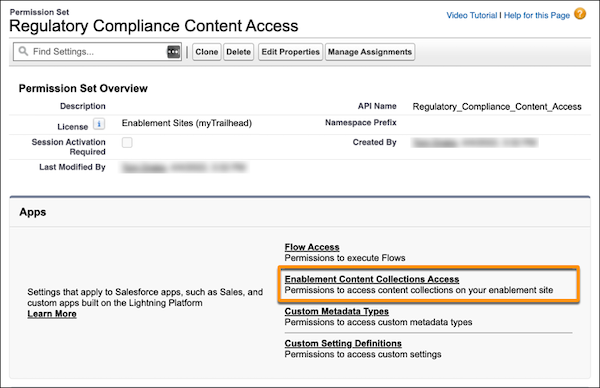
- Click Edit.
-
Select the content collections that you want this permission set to enable.
For example, select the Regulatory Compliance content collection from the list of available collections, and add it to the list of enabled collections.
- Save your changes.
-
Assign users to the permission sets that you created to give those users access to the
associated content collections.
- From Setup, in the Quick Find box, enter Users, and then select Users.
- Select a user.
- Scroll to the Permission Set Assignments section of the user details, and click Edit Assignments.
-
Select the permission set that enables access to the content collections that the user
can access.
For example, to give the user access to the Regulatory Compliance content collection, select Regulatory Compliance Content Access, and add it to the list of enabled permission sets.
- Save your changes.
Tip Alternatively, you can start from the permission set and add multiple users. On the permission set’s overview page, click Manage Assignments. Select all the users that you want to add, and then click Add Assignments.Note When you change a user’s permissions, the change takes a few minutes to take effect.
See Also
- Considerations for Getting Started with Content Collections
- Examples of Content Collections
- Enablement Site Permissions List
- Add Content to a Release from Trailmaker Content
- Migrate Published Content to a Different Content Collection
- Video: Deliver Learning Content for Specific Audiences with myTrailhead Content Permissions