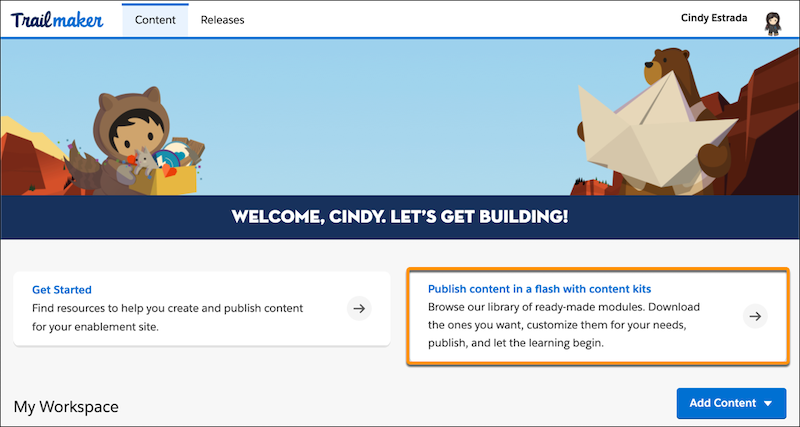
Add learning content to your company’s enablement site without creating trails,
modules, and units from scratch. To immediately add quality content to your enablement site, we
recommend that you download Salesforce content templates (formerly content kits). Content
templates provide finished modules on topics that are applicable to any company. For example,
add content about sales and service strategies, inclusiveness and diversity, or collaboration in
a virtual workplace.
Required Editions
| Available in: Enterprise, Performance, and
Unlimited Editions
|
| User Roles and
Permissions |
|
Enablement Site User Roles
|
|
| This topic supports these enablement site
roles: |
Content Creators |
|
Required System Permissions
|
|
| To create and edit content with Trailmaker Content: |
Create Content |
-
In the Trailmaker Content workspace, click the content templates tile. Or, point your
browser to the Content Templates web page.
-
Complete the request form.
-
On the Content Templates web page, find a module that you want to use, and click the
download icon
 .
.
-
To import a downloaded content template backpack into your workspace, complete the steps in
Import a Backpack into Trailmaker Content.
-
After the content template is in your workspace, edit the content for your
company’s unique requirements.
-
Update the module’s API name so that it’s globally unique.
-
Optionally, update the module’s badge art, title, description, and filters.
-
Update each unit’s API name so that it’s globally unique.
-
If the content template you downloaded has any [INSERT COMPANY NAME]
placeholders, update the placeholders with your company’s name.
-
Optionally, update any titles, text, images, or links.
-
Optionally, preview the module from your workspace by completing the steps in Preview a Module in Trailmaker Content.
-
Create a release, add the content to a release, and publish the release. See Manage Releases with the Trailmaker Release App and Add Content to a Release from Trailmaker Content.