You can add a unit to an existing module.
Required Editions
| Available in: Enterprise, Performance, and
Unlimited Editions
|
| User Roles and
Permissions |
|
Enablement Site User Roles
|
|
| This topic supports these enablement site
roles: |
Content Creators |
|
Required System Permissions
|
|
| To create and edit content with Trailmaker Content: |
Create Content |
-
Find the backpack that you want to import. You can:
-
Import the module backpack into your Trailmaker Content workspace by completing the steps
in Import a Backpack into Trailmaker Content.
-
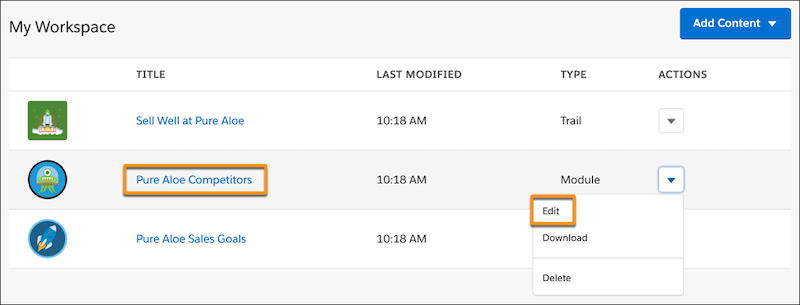
In the Trailmaker Content workspace, click the module title, or select
Edit from the Actions menu for the module.
-
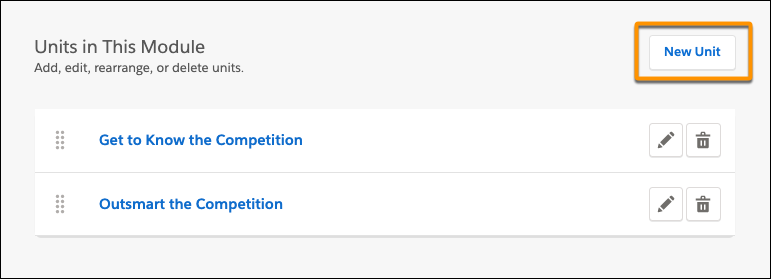
On the module page, click New Unit.
-
Enter your unit’s metadata and content.
-
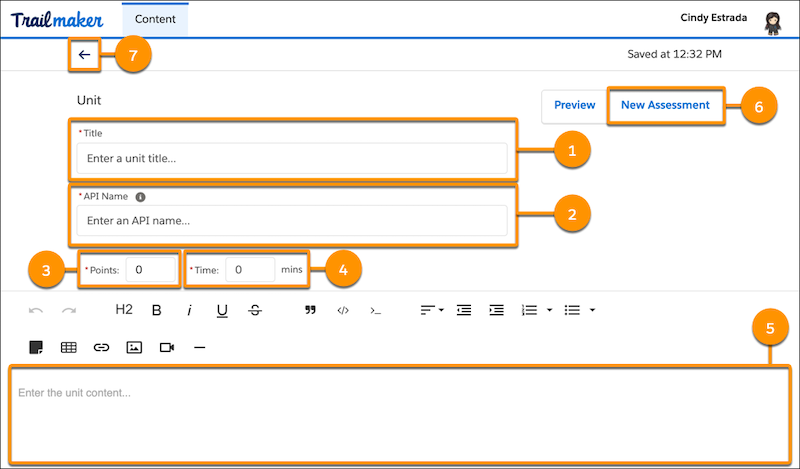
Enter a unit title (1).
-
Accept the suggested API name (2), or enter a unique name that you want to use
instead.
-
For Points (3), enter the number of points that a learner earns by completing the unit’s
quiz.
-
For Time (4), enter your estimate for how many minutes it takes to complete the unit and
quiz.
-
To add the unit’s content, use the field below the formatting toolbar (5).
-
To add the unit’s quiz, click New Assessment (6). For help with
quizzes, see Create Quizzes in Trailmaker Content.
-
To add another unit, click the back icon
 (7) to return to the module page, click
New Unit, and repeat these steps.
(7) to return to the module page, click
New Unit, and repeat these steps.
-
Add the revised module to an unpublished release by completing the steps in Add Content to a Release from Trailmaker Content.
-
Preview and publish the release.
-
Download the latest released version of the module backpack, and store it in your
VCS.

 Note
Note Tip We recommend that you paste only the unit’s text first, and then use the options on the formatting toolbar to insert images and videos.