
Control what Momentum captures, syncs, and records. An exclusion applies to all Momentum configurations and users. Excluded data isn’t added to the activity timeline of related Salesforce records, and excluded events don’t sync between Salesforce and the connected calendar account. Adding exclusions doesn’t remove previously stored data. Exclusions only filter incoming data after you save an exclusion value to your settings. Users can add more addresses to their own excluded addresses lists in their personal settings.
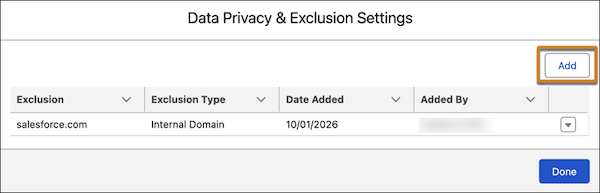
Review the org-wide excluded addresses list immediately after setting up Momentum. By default, the domain associated with the email address of the Salesforce admin who created the first Momentum configuration is excluded. If you have customers, prospects, or contacts who use the same domain as your company, their emails and events are blocked. Verify the list to confirm that customer communications aren't filtered out.
You can’t modify an exclusion. To change an exclusion, delete it and create a new exclusion.
- From the gear icon, select Salesforce Go.
- On the Salesforce Go Home page, search for and select Momentum.
- In Unlock Advanced Functionality, under Manage Data Privacy & Exclusion, click Manage.
-
Click Add.
-
Click a tab, and enter what to exclude. Save your changes before moving to another
tab.
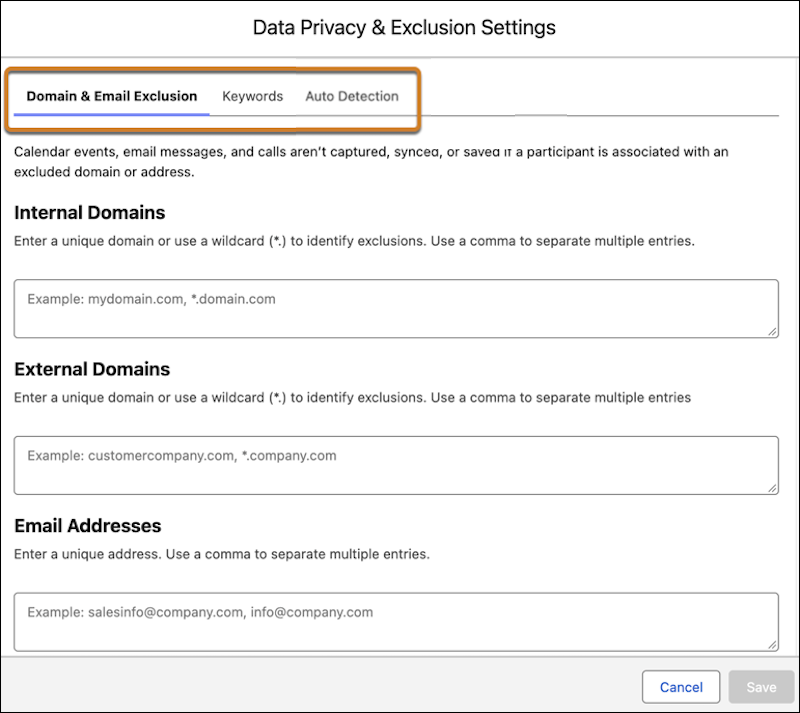
Exclude Events, Emails, and Videos Based on Email Address and Domain
If a participant is associated with an excluded domain or address, Calendar events, email messages, and calls aren’t captured, synced, or saved.
Domain exclusions support wildcard rules. For example, enter
*.domain.com to exclude all subdomains, such as
support.domain.com and multilevel subdomains
(more.support.domain.com). However, this example doesn’t filter out the
primary domain (domain.com). Enter the primary domain as a unique
entry.
Exclude Emails Based on Keywords and Sensitive Content
Add keywords to exclude specific emails from capture. Use automatic sensitive content filtering to detect and exclude specific email messages. Basic sensitive content exclusion is on by default. It excludes messages that contain credit card numbers, US social security and driver license numbers, and Canadian social insurance numbers.
You can use single words, phrases, or regular expressions. The character limit for a keyword is 70, and a regular expression can have 50 characters. In a regular expression, use a double backslash (\\) where you typically use a single backslash (\). To add multiple values, separate words or phrases with a comma, and separate regular expressions with a semicolon. You can have up to 100 unique keywords and 50 unique expressions. To increase the limit, contact Salesforce Customer Support.