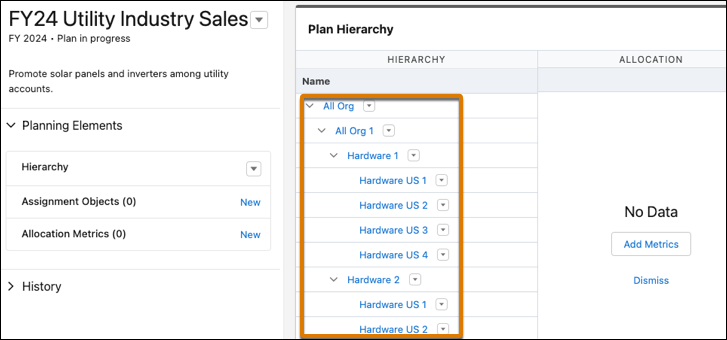
Organize and coordinate your teams’ selling efforts when you specify your plan’s sales hierarchy in business units, sales roles, geographies, or other criteria in Legacy Sales Planning.
Required Editions
| Available in: both Salesforce Classic (not available in all orgs) and Lightning Experience |
| Available for an additional cost in: Enterprise, Performance, Unlimited, and Developer Editions with Sales Planning in English only, and only if you have Web Services API enabled |
| User Permissions Needed | |
|---|---|
| To establish hierarchies: |
Data Pipelines Base User permission set license Data Pipelines Base User permission set AND Sales Planning permission set |
The number of nodes that you add within your hierarchy can impact performance. If you plan to add more than 100 nodes within any parent node, test thoroughly for performance issues. For the best performance, add no more than 100 nodes to any parent node.

Important
Feature is scheduled for retirement as of Summer'26. See Sales Planning version 1 Retirement
- Open a sales plan that doesn’t yet include a hierarchy.
-
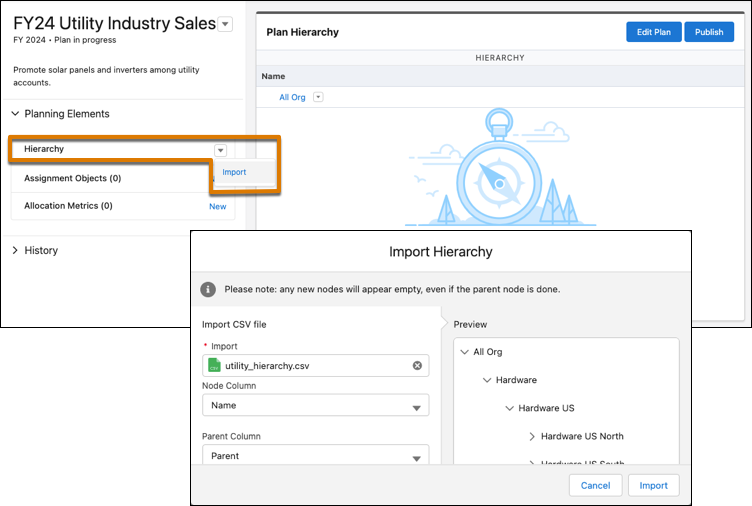
To import a hierarchy from a CSV file, click Import, and then select
the file that contains your data having as many as 1,000 hierarchy nodes. Finish the import
process, and then skip to step 5.
Or to create a hierarchy from scratch, skip to the next step.
- Click Edit Plan.
-
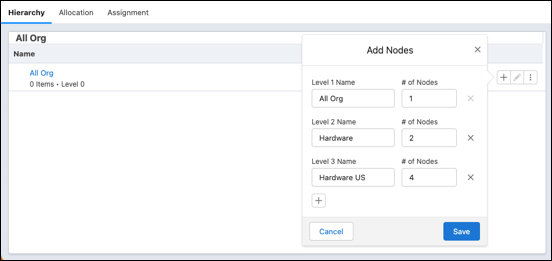
On the Hierarchy tab, add as many as 1,000 hierarchy nodes to the levels that correspond
with your sales structure. Then save your changes.
-
Review and adjust hierarchy items so that they reflect details in your sales
structure.
The hierarchy appears on the sales plan.