Make informed decisions about assignments when you include the most relevant details in your list views. Add columns that show specific fields based on your assignment objects in Legacy Sales Planning.
Required Editions
| Available in: both Salesforce Classic (not available in all orgs) and Lightning Experience |
| Available for an additional cost in: Enterprise, Performance, Unlimited, and Developer Editions with Sales Planning in English only, and only if you have Web Services API enabled |
| User Permissions Needed | |
|---|---|
| To create and modify list views for assignments: |
Data Pipelines Base User permission set license Data Pipelines Base User permission set AND Sales Planning permission set |
- Open your sales plan, and then click Edit Plan | Assignment.
-
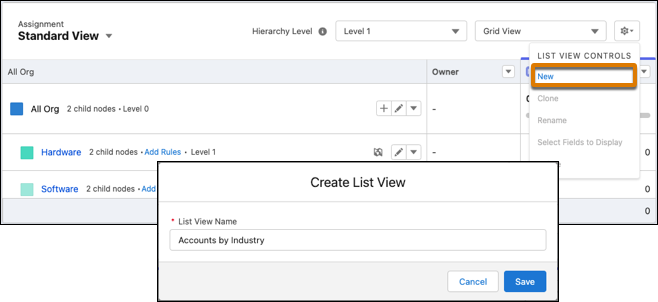
Click Settings | New. Enter a name for your list view, and then save your changes.
-
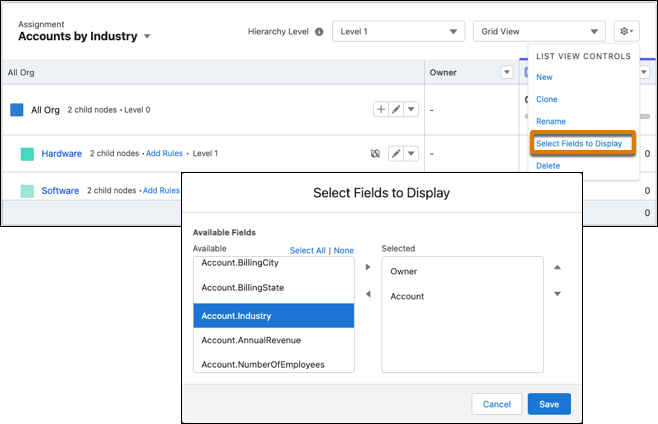
Click Settings | Select Fields to Display. Select the fields you want to appear as columns for your new list view, and
then save your changes.
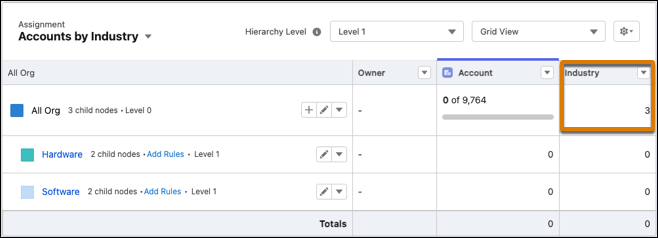
Text fields appear with numerical values that represent the number of unique values for each node’s records. For example, you select the text field Account.Industry. Sales Planning shows a numerical value based on the number of industries represented across all accounts within that node.