
In supported versions of Outlook, you can pin the Salesforce side panel so that it stays open as you move through emails.
Required Editions
| Available in: Lightning Experience |
| Available in: Unlimited, Einstein 1 Sales, and Agentforce 1 Sales Editions. Available for an extra cost in Professional and Enterprise Editions. |
The pin is supported in the following versions and builds of Outlook:
- For Current or Office Insider channels users, the pin is available in Outlook 2016 for Windows build 7668.2000 and later.
- For Outlook on the web users, the pin is available if the backend is Office 365.
- For new or legacy Outlook for Mac users, the pin is available in version 16.13.180513 and later.
- For Deferred channel users, the pin is available in Outlook 2016 for Windows build 7900.xxxx and later.
In addition, the feature is available only if you’ve installed Outlook 2016 using the click-to-run installer (not MSI). To check your version and installation type, in Outlook, go to File | Office Account. For more details, see What version of Outlook do I have?.
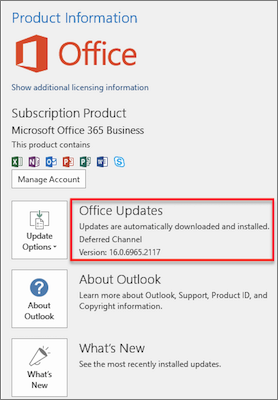

Note You must have both a supported version of Outlook and a click-to-run installation to
use the pin feature.
- In Outlook 2016, launch Inbox or the Outlook integration.
-
Click
 in the
upper-right corner of Salesforce side panel. The image changes to
in the
upper-right corner of Salesforce side panel. The image changes to  .
In the Outlook integration with or without Inbox, pin the panel open while reading an email. Pin the panel open again while composing an email to ensure that the panel is always open.
.
In the Outlook integration with or without Inbox, pin the panel open while reading an email. Pin the panel open again while composing an email to ensure that the panel is always open.