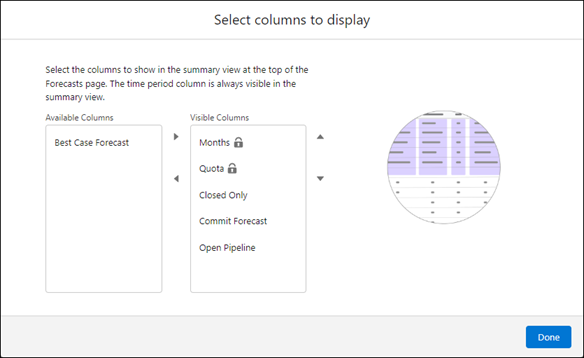
Customize the display of most standard and custom forecast columns on the forecasts page. For example, you can position a custom Most Likely column to appear next to the Open Pipeline column.
Required Editions
| Available in: Lightning Experience |
| Available in: Professional, Performance, and Developer Editions and in Enterprise and Unlimited Editions with Sales |
| User Permissions Needed | |
|---|---|
| To view the Forecasts Settings page: |
View Setup and Configuration AND View All Forecasts OR Allow Forecasting OR delegated forecast manager |
| To create and manage a forecast type: | Customize Application |
The time period is always the first column on the forecasts page. If quotas are enabled, the quota column is always the second column. The lock icon indicates that you can’t reorder or hide these columns.
- From Setup, in the Quick Find box, enter Forecasts Settings, and then select Forecasts Settings.
- Under Available Forecast Types, select Select Columns to Display from the quick actions for a forecast type.
-
Select columns to appear and reorder them as needed. Then click
Done.