
To make an Enablement program available to users so they can enroll at their own convenience, enable self-enrollment in Program Builder. Then, share a program with specific users, groups, or roles. Users can find programs that are shared with them and start taking the program when they’re ready.
Required Editions
| Available in: Lightning Experience |
| Enablement is available in Developer Edition with a limited number of add-ons. It is also available with Sales, Service, or the Salesforce Platform in: Enterprise, Performance, Unlimited, and Einstein 1 Sales Edition Editions for an additional cost |
| Enablement Lite is available with Sales in: Enterprise, Performance, and Unlimited Editions |
| Partner Enablement is available in Developer Edition with a limited number of add-ons. It is also available with Sales, Service, or the Salesforce Platform in: Enterprise, Performance, and Unlimited Editions for an additional cost. A supported PRM add-on license is required. |
| User Permissions Needed | |
|---|---|
| To share programs for self-enrollment: |
Design and Deliver Enablement Programs OR Design and Deliver Enablement Lite Programs |
- From the App Launcher, find and select Enablement Programs.
- Create or edit a program and enable self-enrollment.
- In Program Builder, turn on Users Can Self-Enroll.
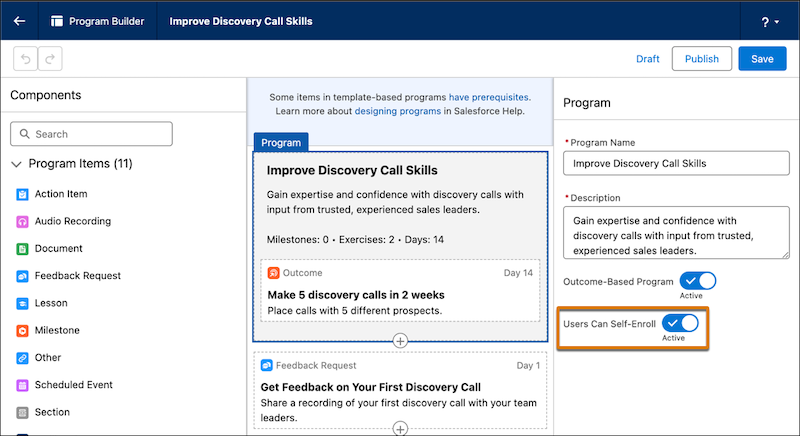
- Save and publish the program.
- In Program Builder, turn on Users Can Self-Enroll.
- Share the published program with users.
- On the Enablement Programs page, open the dropdown menu for the published program that you want to share or navigate to the program’s record detail page.
- Click Sharing.
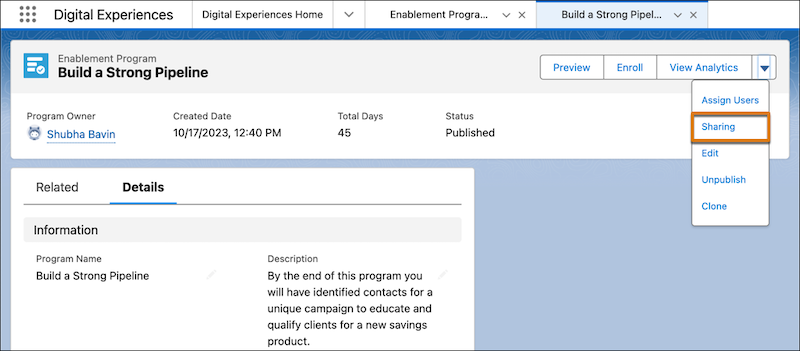
- In the Share window, search for the user, group, or role that you want to make the program available to. For access level, select Read Only, and then save.
- For access level, select Read Only.
- Save your changes.