
Enablement admins add the Feedback Request exercise to a program and specify the assessment survey that reviewers complete and the number of reviewers that an Enablement user must select. After the program is published and made available, users submit their content for review and select the required number of reviewers.
Required Editions
| Available in: Lightning Experience |
| Enablement is available in Developer Edition with a limited number of add-ons. It is also available with Sales, Service, or the Salesforce Platform in: Enterprise, Performance, and Unlimited, Editions for an additional cost |
| User Permissions Needed | |
|---|---|
| To add assessment surveys to Feedback Request exercises: |
Read on Surveys (enabled on the default Manage Enablement Essentials permission set and the default Manage Enablement Lite Essentials permission set) AND Sharing access to assessment surveys AND Design and Deliver Enablement Programs OR Design and Deliver Enablement Lite Programs |
If you’re trying Enablement Lite, surveys aren’t included like they are with the full Enablement license. The default assessment survey, Discovery Call Assessment, isn’t provided. The Enablement Lite default permission sets still provide read access to surveys and create, read, edit, and delete access to related survey objects. You can give access to create surveys outside of these default permission sets. When you upgrade to full Enablement, the Enablement Resources Manager permission set group becomes available and includes access to create surveys by default.

- In Program Builder, add the Feedback Request exercise to a program and reference your
assessment survey.
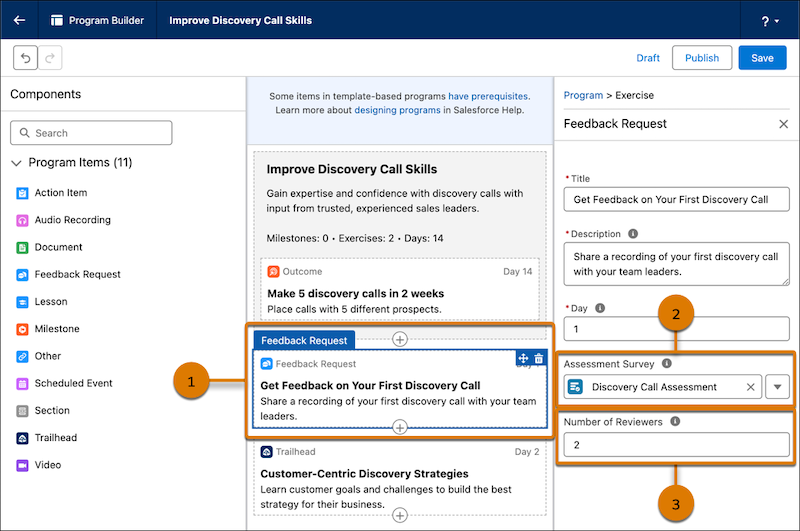
- Add the Feedback Request exercise to the program canvas (1).
- In the exercise properties, for Assessment Survey, select the assessment survey you want to use (2).
- For Number of Reviewers, specify the number of peers, managers, or other users that you want Enablement users to select for gathering feedback (3).
- Finish assembling the program, and then publish it and assign it to Enablement users. See Launching Enablement Programs.
When Enablement users take the program with the Feedback Request exercise, they’re required to specify the URL to the content they want reviewed (1) and select the specified number of reviewers (2).
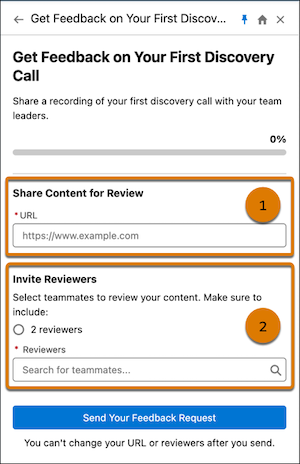
The selected reviewers receive an email invitation to complete the corresponding assessment survey. When reviewers submit their feedback, a flow is triggered for sending an in-app notification to the Enablement user. In the Guidance Center, Enablement users can view the submitted feedback.
Enablement admins can analyze reviewer responses against changes in user behavior using these reports.
- Feedback Responses to All Questions
- Feedback Responses to Rating Questions
Enablement admins can also monitor Feedback Request exercise progress from these widgets in the latest Enablement dashboard folder.
- Number of Feedback Survey Responses Submitted
- Feedback Responses by Assignee
- Feedback Responses by Exercise