Protect access to your company’s data when you send emails that use Visualforce Classic email templates to guest users. These templates can be used with Process Builder, Workflow Builder, and Apex calls.
Required Editions
| Available in: Salesforce Classic and Lightning Experience |
| Available in: Essentials, Enterprise, Performance, Unlimited, and Developer Editions |
| User Permissions Needed | |
|---|---|
| To create or change Classic Visualforce email templates: | Author Apex |
| To create or change Visualforce email templates: | Customize Application |
| To create or change public email template folders: | Manage Public Classic Email Templates |
In Summer ‘20, Salesforce introduced a security policy that affects Visualforce email templates used to send emails to guest users in Experience Cloud sites.

Note Classic Visualforce email templates must be edited in
Salesforce Classic, but they can be used in Lightning Experience with
Process Builder, Workflow Builder, and Apex calls.
Modify each Visualforce email template so that emails are sent correctly to all users, including guest users.
-
Add the Author Apex user permission.
- From Setup, enter Profiles in the Quick Find box, then select Profiles.
- Edit an existing profile or create one.
- In the Administrative Permissions section, select Author Apex.
-
Edit a Visualforce email template.
- In Setup, enter Classic in the Quick Find box, then select Classic Email Templates.
- Click the name of a Visualforce type template.
- Click Edit Template.
-
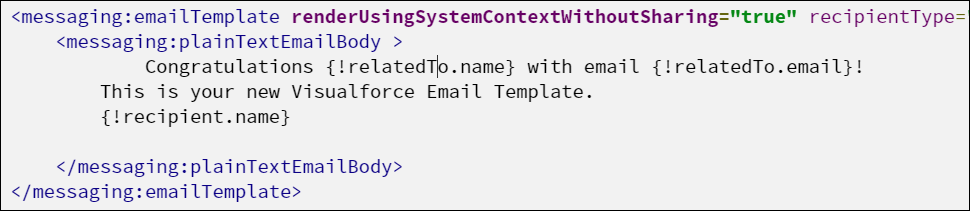
Add the system context attribute to the emailTemplate tag:
renderUsingSystemContextWithoutSharing="True" Warning When
renderUsingSystemContextWithoutSharing="True", the email template runs in system mode, which bypasses user permissions, field-level security, and organization-wide defaults. Be careful when using this setting so that you don't inadvertently expose sensitive data. Before using this setting, assess the impact of the guest security policy and, if necessary, update the Visualforce email templates instead. - Click Save.

Example