
As you become familiar with Email Template Builder, use this information as your guide.
Required Editions
| Available in: Lightning Experience for email templates created in Email Template Builder and Email Content Builder |
| Available in: Professional, Enterprise, Unlimited, Performance, and Developer Editions. |
| Available in: Account Engagement Lightning App for all Account Engagement editions |
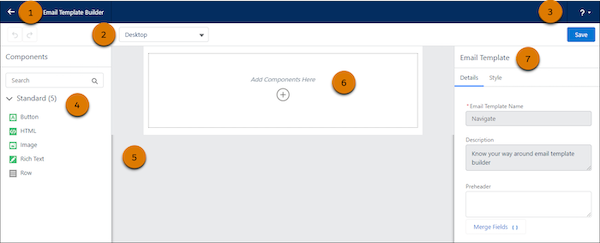
Review these parts of the email template builder.
- Back Button (1)—Use the Back button to return to Salesforce and email templates.
- Preview Mode (2)—Preview the template in different modes, such as desktop and phone.
- Salesforce Help (3)—Open the help menu to access Salesforce Help, videos, and other resources.
- Components Panel (4)—See the available components for your template.
- Canvas (5)—Use components to create your template on the canvas. To add a component to the canvas, drag it from the panel or click + to select.
- Default Row (6)—All components are placed in rows. This row is the default row for a new template. Add a component to it or create more rows.
- Property Panel (7)—The property panel shows what can be changed about the component. Change settings in both tabs. Style a component’s properties in the Style tab.