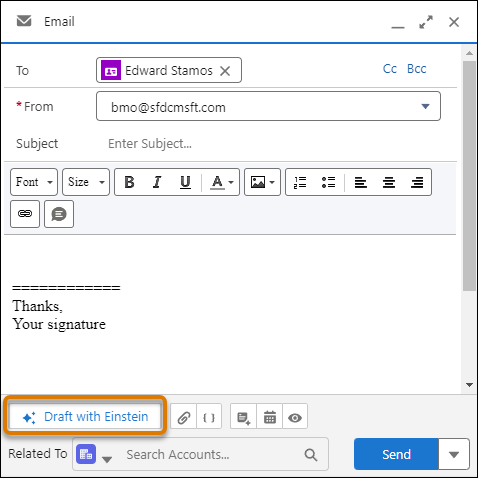
Ask Einstein generative AI to draft some of your most common types of emails, such as introductions and follow-up nudges. Like email templates, Einstein pulls in a contact’s name and information to customize your email. But unlike a static template, Einstein creates personalized output every time.
Required Editions
| Available in: Lightning Experience |
| Available with the Einstein for Sales add-on, which is available for an extra cost in Performance and Unlimited Editions. |
| User Permissions Needed | |
|---|---|
| To send sales emails using Einstein generative AI: | Einstein Sales Emails permission set |
You can choose from pre-made email types and custom email types created by an admin.
-
Use Einstein to create emails in Salesforce and in Salesforce email integrations for
Outlook and Gmail.
- In Salesforce, open the email composer anywhere in Lightning Experience.
- In Gmail or Outlook integrations, locate the Einstein Sales Emails component in the email application pane.
- Enter a recipient with a contact or lead record in Salesforce.
- Click Draft with Einstein.
-
Select a pre-made email instruction.
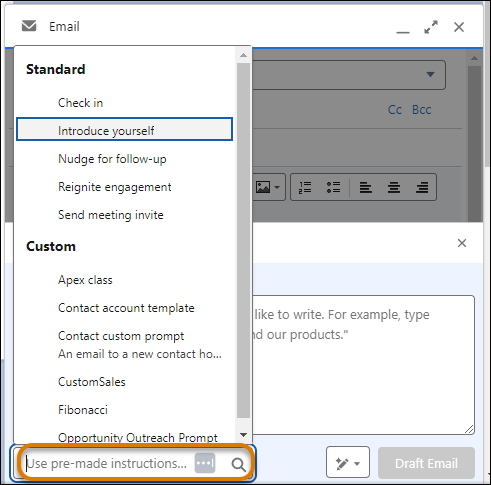
Depending on the email type, you can be asked to include related object information, such as product information. Select or search for a product and click Continue.
-
After Einstein drafts the email, review the output and edit it as you like before sending.
Each time you choose pre-made email instructions, you get a personalized response.
Be sure to fill in any missing details where Einstein leaves a spot for you to customize the email. For example, when the email suggests a meeting with the customer, you see [Customize: DATE AND TIME] where you can add a possible meeting time.
- Send the email.