
Start your sales planning process with relevant data from Salesforce or from other proprietary and third-party sources that you connect to in Sales Planning.
Required Editions
| Available in: both Salesforce Classic (not available in all orgs) and Lightning Experience |
| Available for an additional cost in: Enterprise, Performance, Unlimited, and Developer Editions with Sales Planning in English only, and only if you have Web Services API enabled |
| User Permissions Needed | |
|---|---|
| To set up a data source: |
Sales Planning Admin permission set AND One of these:
|
- Click the Sales Planning Settings tab.
- Select Data Sources in the left menu.
- Click Add.
-
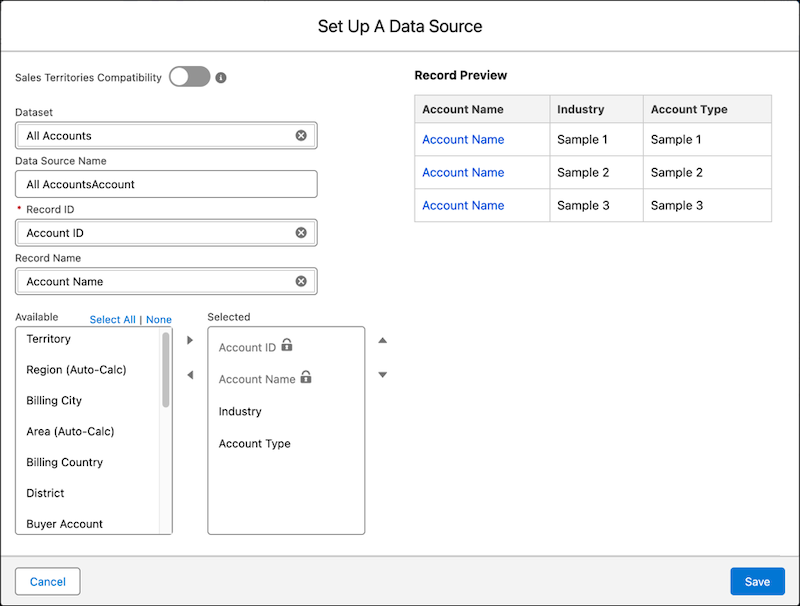
In Dataset, search for and select a source that you want to connect to.
For example, search for and select from datasets that include accounts, accounts and leads, data from custom objects, or data from outside Salesforce.
-
Add a name for your data source, and then select the columns you want to include.
- Save your changes.