
Einstein Prediction Builder is used to build custom predictions. But, you can also use it to run managed package predictions.
Required Editions
| Available in: Enterprise, Performance, Unlimited, and Developer Editions |
To install and use a managed package prediction, you need the installation URL for the package. The package developer can provide these details.
- In a browser, go to the installation URL that the package developer has provided.
- Log in using the credentials for the org where you want to install the package. Make sure Einstein Prediction Builder is enabled.
-
On the install page, choose whether to install for admins, all users, or specific profiles.
Read and click to acknowledge terms, and click
Install.
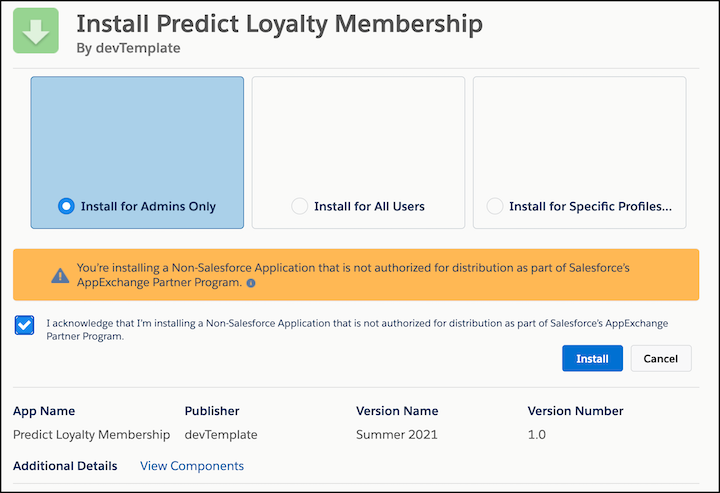
- When the package is finished installing, click Done.
- From Setup, in the Quick Find box, enter Einstein Prediction Builder . Then select Einstein Prediction Builder. Or, on the Einstein Prediction Builder tile in Setup Home, click Get Started.
- If it’s your first time using Einstein Prediction Builder, click Get Started on the splash page. Review and agree to terms if needed. Otherwise, skip to the next step.
- In the Predictions list view, the manage package is displayed with a special icon that shows the package name when you hover on it. Its status is Ready to Build. In the action menu next to the status, select Build.
- The managed package prediction is in Pending status until building has finished. You are notified when the prediction's ready. This can take anywhere from 30 minutes to 24 hours. When the prediction is in the Ready for Review status, in the action menu, select View Scorecard .
- Reviw the scorecard. Then, decide if you want to enable your managed package prediction.
- When you're ready to enable the managed package prediction, to put it to work from the scorecard or the list view action menu.