After building custom predictions using Einstein Prediction Builder, you can add one or more of your predictions to a managed package to reuse them in other orgs.
Required Editions
| Available in: Developer Edition. |
- Log in to a Developer Edition org that has Einstein Prediction Builder enabled.
- Use Einstein Prediction Builder to build one or more predictions.
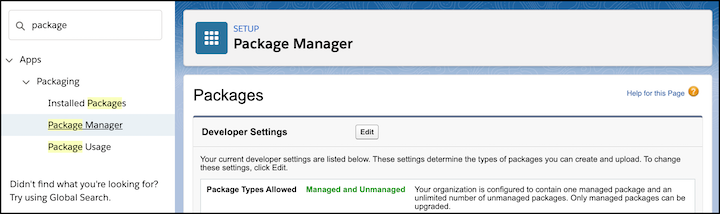
- From Setup, enter package in the Quick Find box. Then, select Package Manager.
-
Next to Developer Settings, click Edit.
- On the Change Developer Settings page, click Continue.
- In the Namespace Prefix field, enter a unique name to identify your package so it's different from other developers' packages.
- Click Review My Selections.
- Click Save.
-
Next to Packages, click New.
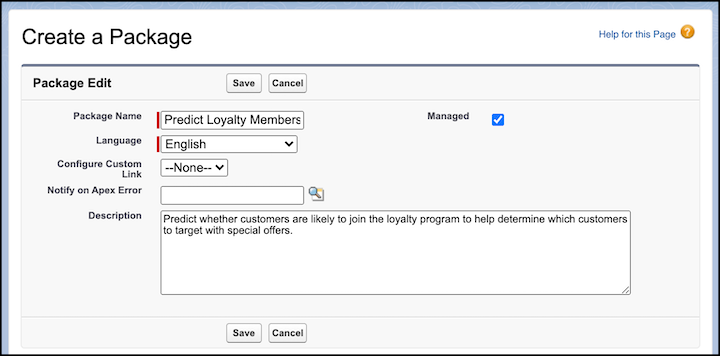
- Give your managed package a relevant name that describes what subscribers can do with it. For example, Predict Loyalty Membership. After installation, your managed package displays in Einstein Prediction Builder list view using the name you define here.
- To provide some details about the package, enter a description.
-
Select Managed and OK to
confirm.
 Note Predictions are packageable only in managed packages.
 - Click Save. You just created a wrapper for your package and it doesn't contain anything yet.
- The package is now listed in Package Manager. Click the name of the package.
- On the Components tab, click Add.
-
From the Component Type menu, select AI Application.
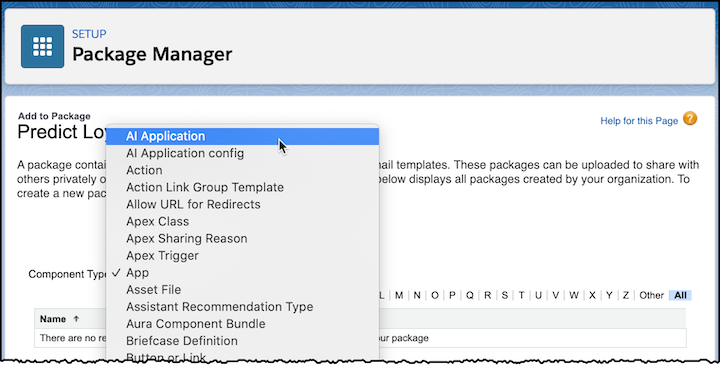
- Select the prediction(s) you want to add to your package, and click Add to Package. The Components tab now lists the prediction(s) you just added and related components are automatically added.
- At the top of the page, click Upload.
- To differentiate the package from future versions, enter a version name. For example, enter something time-based such as Summer 2021.
- Enter a version number or leave the prefilled value.
- Select Managed - Released so that you get a URL for deployment.
- If you want, you can do additional settings such as password-protection and package requirements.
- Click Upload, then OK to confirm.
-
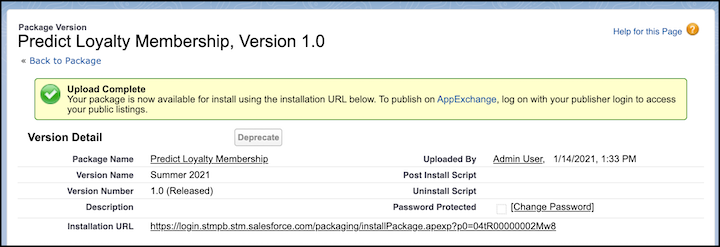
In the Version Detail section, copy the installation URL and paste it somewhere to save for
later. You also get an email with this URL.