
Show the relationships between parent accounts and their subsidiaries to sales reps using Lightning Experience. You can customize hierarchy columns to show the information that’s most useful to your sales teams.
Required Editions
| Available in: Lightning Experience |
| Available in: Essentials, Group, Professional, Enterprise, Performance, Unlimited, and Developer Editions |
| User Permissions Needed | |
|---|---|
| To view account hierarchies: | Read on accounts |
| To create account hierarchies: | Edit on accounts |
| To add, edit or delete hierarchy columns: | Modify All Data |
Account hierarchies display accounts related via the Parent Account field.
-
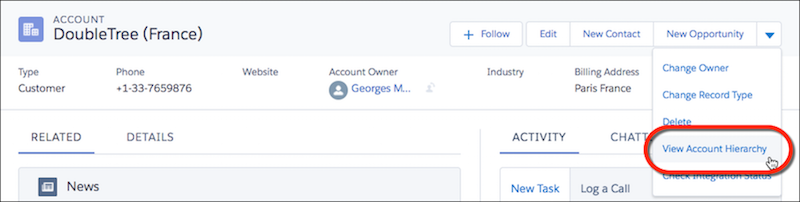
Give your sales reps access to account hierarchies from account pages. In Setup, in the
Salesforce Mobile and Lightning Experience Actions section of your account page layout, add the
View Account Hierarchy action.
The Actions menu includes the View Account Hierarchy action unless you customized the account page layout before Spring ’17.
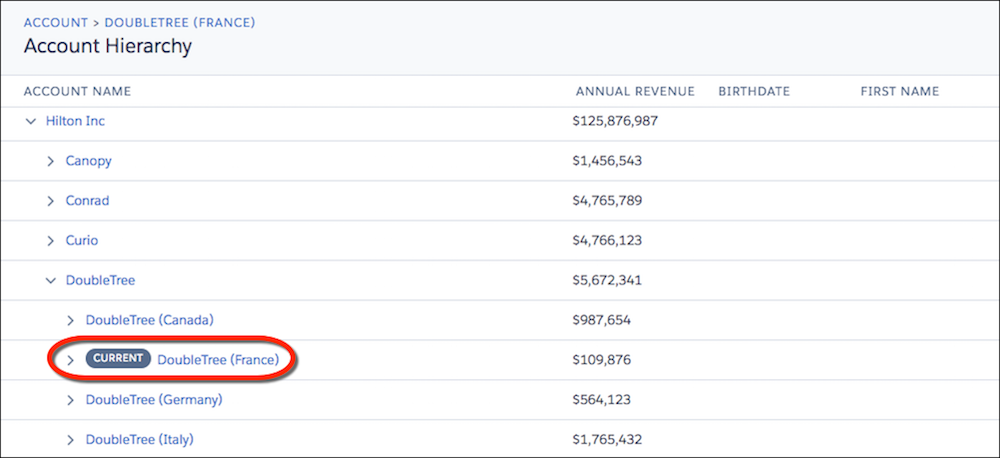
 Sales reps can expand or collapse parts of a hierarchy as they navigate it. They can view up to 2,000 accounts from each point where they enter a hierarchy. To view accounts in a different part of the hierarchy, a sales rep can enter the hierarchy from a different account.
 Hovering over an account name shows more details.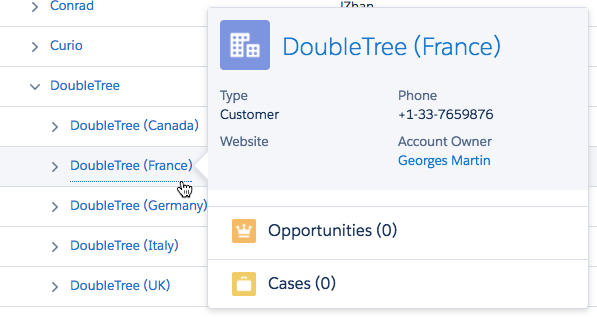
-
You can edit the hierarchy columns to show the information that’s most useful to your sales
reps.
- From Setup, at the top of the page, select Object Manager.
-
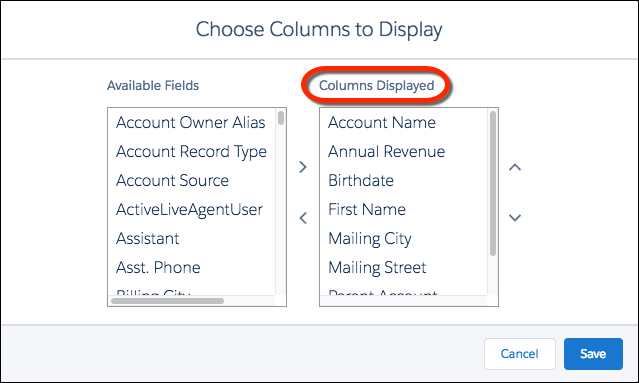
In Account, click Hierarchy Columns and then edit the
columns.
You can include up to 15 columns.
By default, account hierarchies display the same columns as the Recently Viewed Accounts standard list view. However, the list view columns don’t change when you customize the hierarchy columns.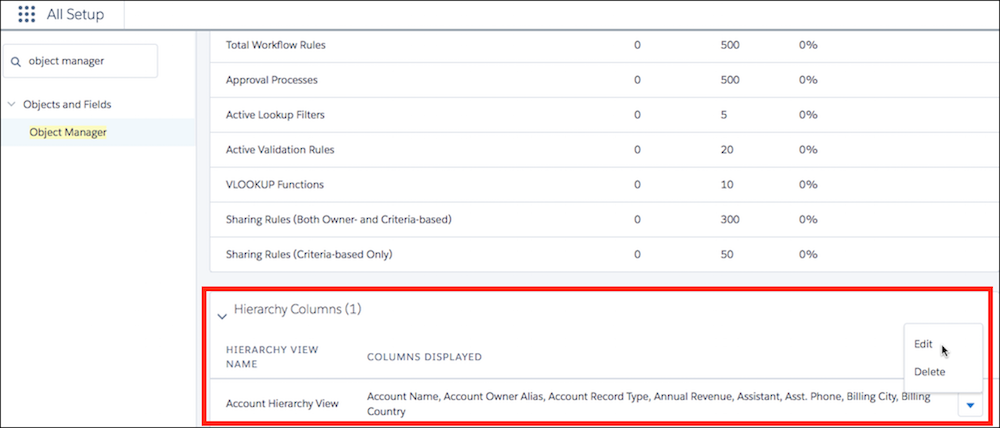

Note After you customize hierarchy columns, the item Org_Account_Hierarchy is added to the
Accounts list view menu. Deleting this item resets the columns to the defaults.