
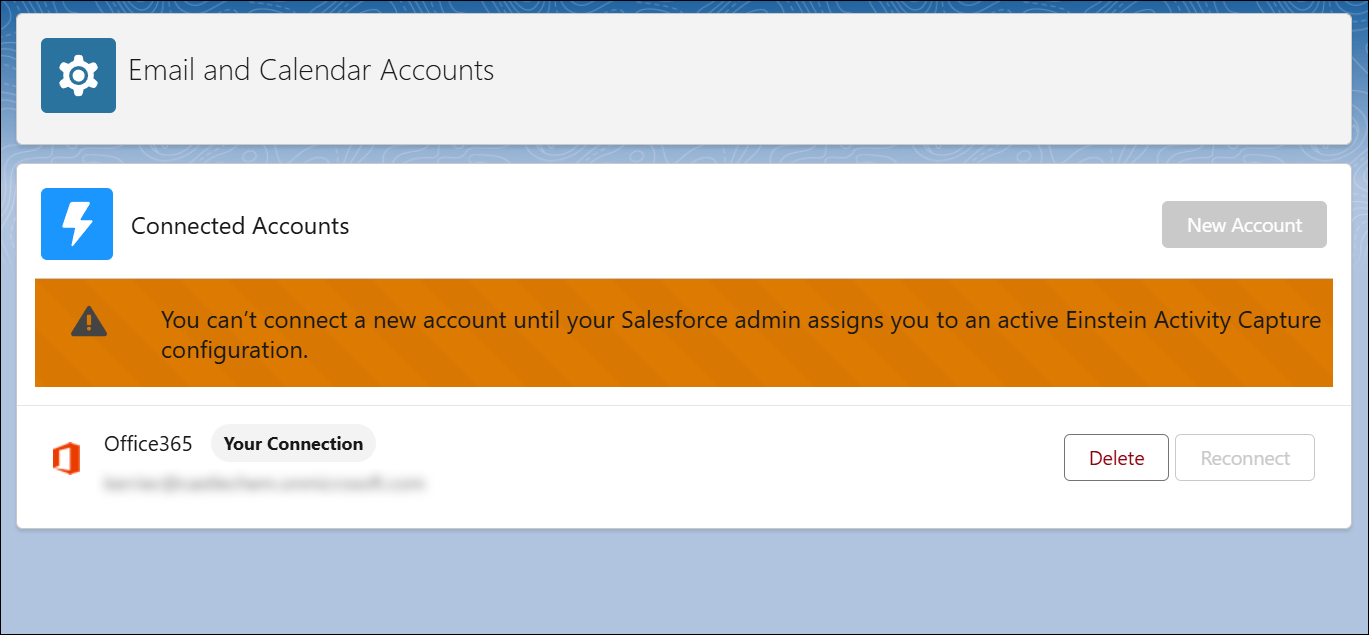
If a user gets an error when trying to connect their email and calendar to Salesforce, remove the Einstein Activity Capture permission for the user, and then assign it again.
Required Editions
| Available in: Lightning Experience |
| Available with Einstein Activity Capture Standard in Sales in Starter, Pro Suite, Professional, and Enterprise Editions |
| Available with Unlimited Edition, Einstein 1 Sales Edition, and Agentforce 1 Edition |
| Available with Einstein for Sales, which is included in Einstein 1 Sales Edition and available for an extra cost in Enterprise and Unlimited Editions |
| Available with Sales Engagement, which is included with Sales in Performance and Unlimited Editions, and available for an extra cost in Professional and Enterprise Editions |
| Available with Revenue Intelligence, which is available for an extra cost in Enterprise and Unlimited Editions |

Note We’re reorganizing the Einstein Activity Capture documentation. We’re
moving some information around, but we aren’t deleting anything.
| User Permissions Needed | |
|---|---|
| To create permission sets: | Manage Profiles and Permission Sets |
| To assign permission sets: | Assign Permission Sets |
- From Setup, in the Quick Find box, enter Users, and then select Users.
- Click the name of the user who encountered the error.
- In the Permission Set Assignments related list, delete the Inbox With Einstein Activity Capture permission set.
- Click Edit Assignments.
- Add the Inbox With Einstein Activity Capture permission set.
- Save your changes.