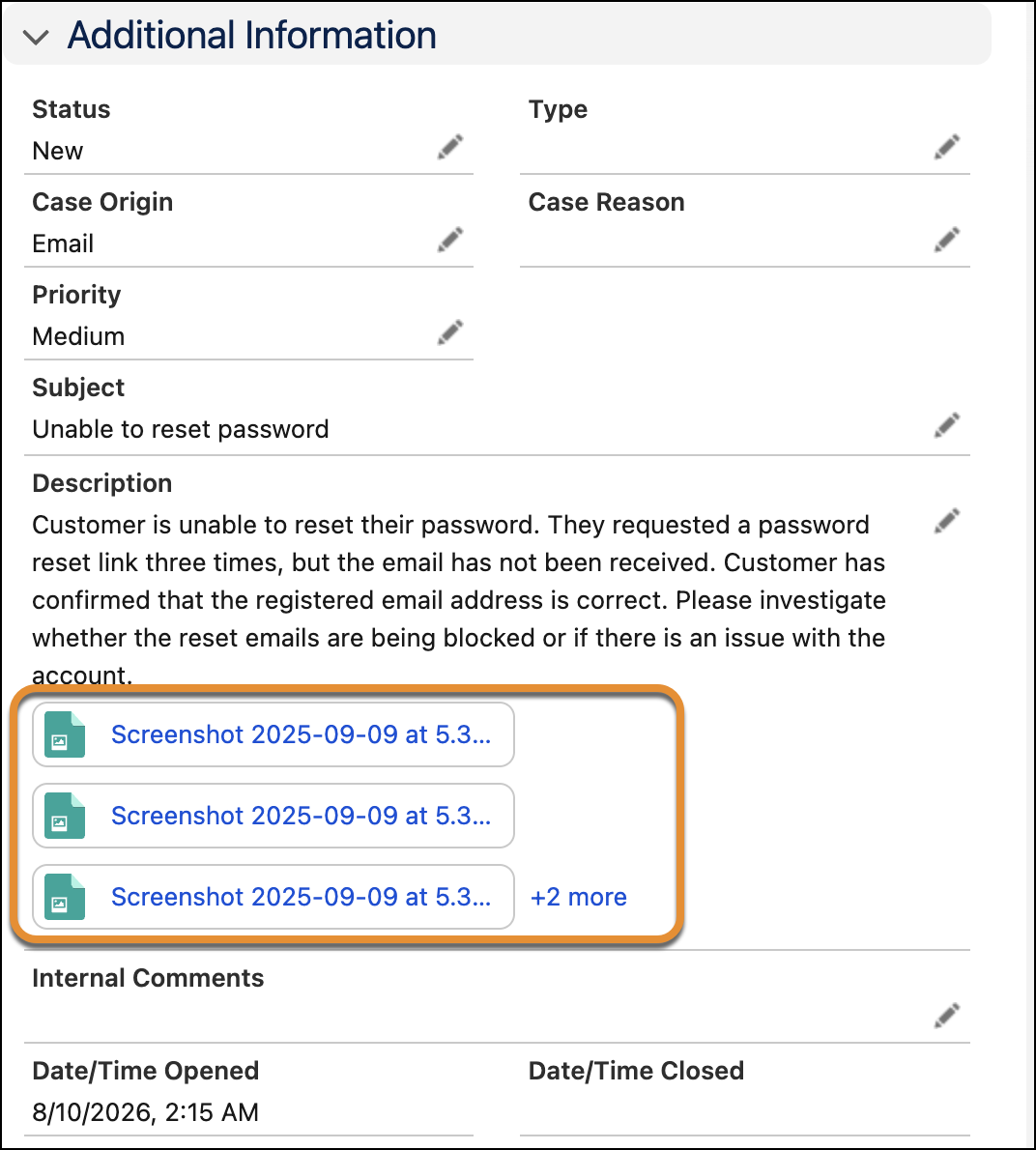
Original case attachments now display directly inline under the Case Description field, eliminating the need to click a button or open a side panel. Reps get immediate context from up to three attachment tiles, with a popover link available to view additional original files. Original attachments include files added in the email subject or case description within the initial case creation timeframe.
Where: This change applies to Lightning Experience in Essentials, Group, Professional, Enterprise, Performance, Unlimited, and Developer editions.
Why: Displaying original attachments directly inline under the description field provides instant context without forcing reps to navigate to the Related List or toggle side panels, improving rep efficiency and workflow.
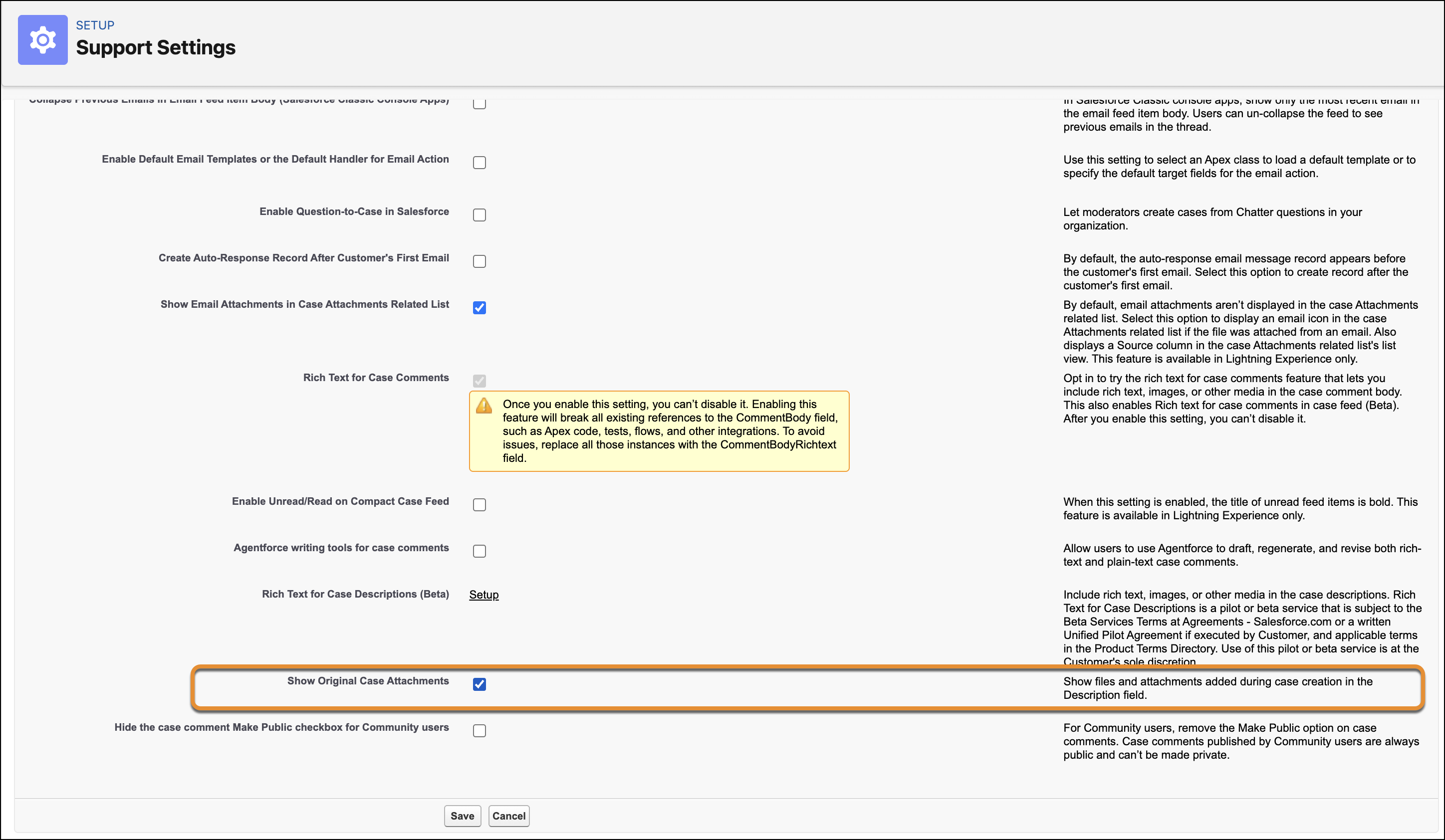
How: To turn on this feature, contact Salesforce Customer Support. Once the feature is turned on, enable the Show Original Case Attachments checkbox on the Support Settings page. Once enabled, original attachments added within the case creation window display automatically beneath the Case Description field:
- Inline Tile Preview: Displays up to 3 original attachments as visual tiles directly under the description text area.
- Overflow Popover: If more than 3 attachments exist, click the + [X] more link to open a popover displaying up to 5 attachments at a time with a scrollbar for the remaining files.
- View All Attachments: Select the View All Attachments button at the bottom of the popover to navigate directly to the Case Related List for a full file history.