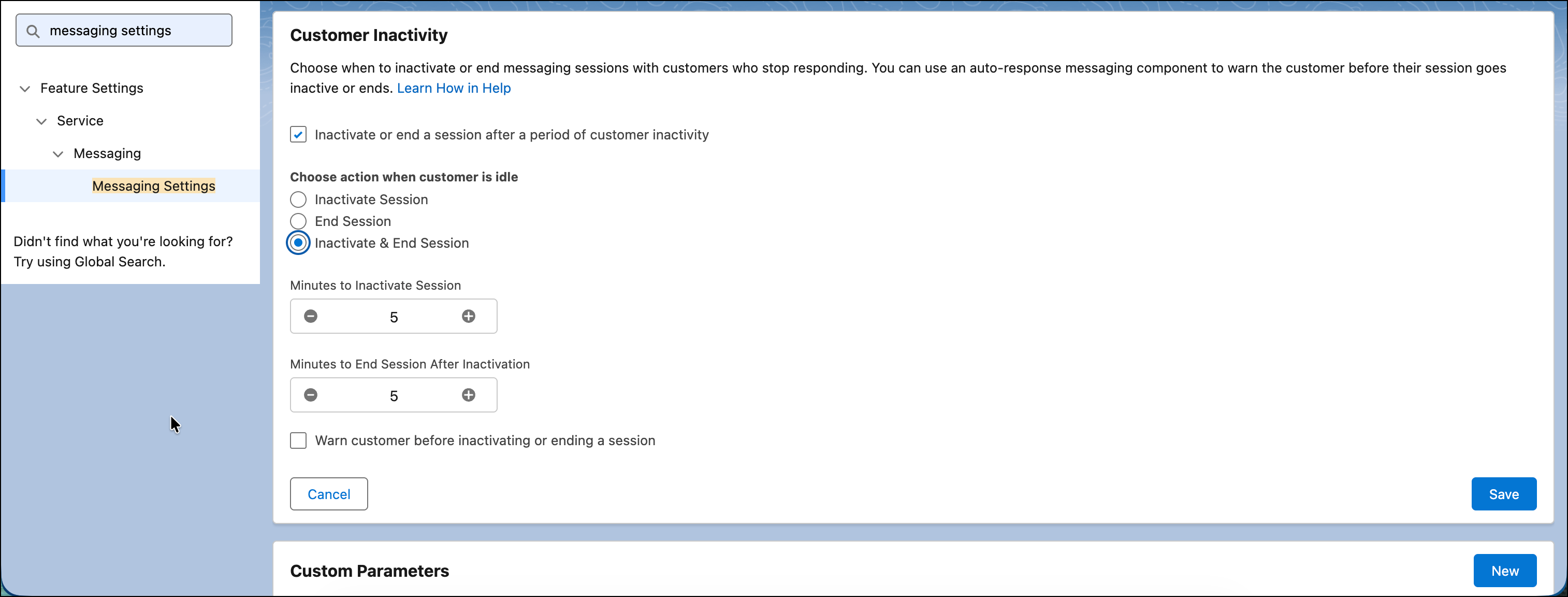
To quickly clean up sessions with an idle end user, configure a messaging channel to auto-end or auto-inactivate and then end sessions after a specified length of time. Previously, you could auto-inactivate sessions in a channel, but auto-ending wasn’t an option.
Where: This change applies to Enhanced Chat and Enhanced Messaging channels. View required editions.
How: To automatically end messaging sessions after inactivity, select End Session. Then, enter a number of minutes between 5 and 30 in the Minutes to End Session field.
To automatically inactivate and then end a messaging session, select Inactivate & End Session. Then, enter a number of minutes between 5 and 30 in the Minutes to Inactivate Session and Minutes to End Session After Inactivation fields.
For both choices, you can select Warn customer before inactivating or ending a session, and then customize the warning that’s sent to an idle customer to prompt a response.