
Create a named credential that specifies the endpoint URL for Snowflake and an external credential to provide the required authentication parameters.
Required Editions
| Available in: both Salesforce Classic and Lightning Experience |
| Available in: all editions |
| User Permissions Needed | |
|---|---|
| To view named credentials: | View Setup and Configuration |
| To create, edit, or delete named credentials: | Manage Named Credentials or Customize Applications |
When you use the Salesforce Connect adapter for SQL to integrate with Snowflake, Salesforce acts as a client (consumer) of Snowflake’s services. Enabling connectivity between services requires additional configuration in both Salesforce and Snowflake. To integrate Salesforce and Snowflake, perform this series of tasks.
- In Salesforce, configure an authentication provider, and copy its redirect URI for the OAuth flow.
- In Snowflake, configure an integration that references the redirect URI from Salesforce.
- In Salesforce, update the authentication provider that you created with parameters from the Snowflake integration.
- If your Snowflake account is configured so that AWS PrivateLink bypasses the public internet, set up an outbound connection in Salesforce to send traffic from Salesforce to your AWS Virtual Private Cloud (VPC).
- In Salesforce, create an external credential that uses the authentication provider that you configured.
- In Salesforce, create a named credential that uses the external credential that you configured.
Configure an Authentication Provider in Salesforce
To get started, create an authentication provider using OpenID Connect in Salesforce.
Give the authentication provider a name like Snowflake, and enter placeholder values in other required fields. You update these fields after you create the integration in Snowflake. For more information, see Configure an Authentication Provider Using OpenID Connect.
After you create the authentication provider, on the Auth. Provider Detail page, copy the callback URL that Salesforce generated. When you create the integration in Snowflake, the callback URL is the redirect URI that redirects the Salesforce admin back to Salesforce after they authenticate in Snowflake.
Configure an Integration in Snowflake
Next, create an integration in Snowflake to enable access to Snowflake’s SQL API. We recommend using Snowflake OAuth for custom clients.
Name the integration Salesforce, and use the callback URL that you copied from Salesforce as the value for the OAUTH_REDIRECT_URI. For more information, see Configure Snowflake OAuth for Custom Clients.
After you create the integration, use this Snowflake query to see the Salesforce integration’s parameters.
DESCRIBE INTEGRATION SALESFORCE;In the query results, retrieve and save these values to add to the authentication provider that you created in Salesforce.
-
OAUTH_CLIENT_ID -
OAUTH_AUTHORIZATION_ENDPOINT -
OAUTH_TOKEN_ENDPOINT
Next, retrieve the client secret. Use this query and save the OAUTH_CLIENT_SECRET that Snowflake returns.
SELECT SYSTEM$SHOW_OAUTH_CLIENT_SECRETS( 'SALESFORCE' );Before you create external and named credentials in Salesforce, we also recommend creating a user with no administrator privileges in your Snowflake account. Assign the Snowflake user a role that isn’t ACCOUNTADMIN or SYSTEMADMIN, and grant the user access to the appropriate warehouse, database, schema, and tables. For more information, see Configuring Access Control in the Snowflake documentation.
Update the Authentication Provider in Salesforce
Next, in Salesforce, update the authentication provider that you created with the values from the Snowflake integration.
| Salesforce Authentication Provider Field | Snowflake Integration Value |
|---|---|
| Consumer Key |
OAUTH_CLIENT_ID
|
| Consumer Secret |
OAUTH_CLIENT_SECRET
|
| Authorize Endpoint URL |
OAUTH_AUTHORIZATION_ENDPOINT
|
| Token Endpoint URL |
OAUTH_TOKEN_ENDPOINT
|
Establish an Outbound Connection with AWS in Salesforce
If your Snowflake account is configured so that AWS PrivateLink bypasses the public internet, you must set up a Private Connect outbound connection in Salesforce to send traffic from Salesforce to your AWS VPC. If your Snowflake account doesn’t use AWS PrivateLink, skip this task.

Before you create the outbound connection in Salesforce, work with your Snowflake admin or Snowflake Support to allow Salesforce to connect privately. See AWS PrivateLink and Snowflake and Allowing Hostnames in the Snowflake documentation.
You must also work with your Snowflake admin to allowlist the Salesforce AWS account for Snowflake. In Snowflake, identify your account’s AWS region. Then, from Salesforce Setup, in the Quick Find box, enter Private, and then click Private Connect. Open the AWS Regions list and find the row for the AWS region that your Snowflake account is in. In the IAM Role column, identify the AWS account number and share it with your Snowflake admin so that they can add the account to the list of allowed hostnames.
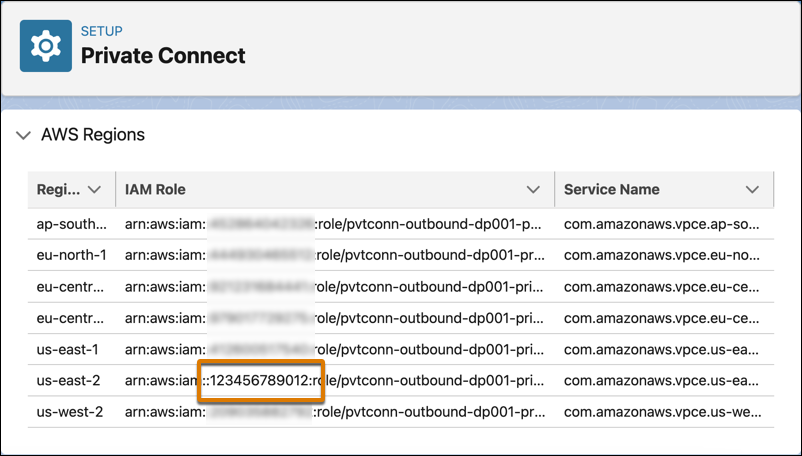
After your Salesforce account is allowlisted, return to Snowflake and run this query.
SELECT SYSTEM$GET_PRIVATELINK_CONFIG();In the query results, retrieve and save the values of PRIVATELINK-VPCE-ID and PRIVATELINK-ACCOUNT-URL
to add to the outbound connection and named credential in Salesforce. We also recommend saving
the PRIVATELINK-ACCOUNT-NAME to help you troubleshoot
issues with the Snowflake team.
In Salesforce, create the outbound connection.
- From Setup, in the Quick Find box, enter Private, and then click Private Connect.
- Click Create Outbound Connection, select AWS PrivateLink, and then click Next.
-
Complete the fields.
Field Description Connection Name Enter a name that references the external system, such as SnowflakeOutboundConnection.VPC Endpoint Service Name Enter the PRIVATELINK-VPCE-IDvalue that you copied from the Snowflake account. For example,com.amazonaws.vpce.us-west-2.vpce-svc-025d08f3df604a276.Region Select the AWS region in which your VPC is hosted. For example, for the VPC endpoint com.amazonaws.vpce.us-west-2.vpce-svc-025d08f3df604a276, the AWS region isus-west-2. - Select Yes, I would like to provision my connection now.
- Save the connection.
Create an External Credential for the Snowflake Integration
Now you’re ready to create an external credential in Salesforce. We recommend using the OAuth 2.0 Browser Flow with the authentication provider that you created for the Snowflake account.
- From Setup, in the Quick Find box, enter Named Credentials, and then select Named Credentials.
- Click External Credentials.
- To create an external credential, click New.
-
Complete the fields.
Field Description Label A user-friendly name for the external credential that’s displayed in the Salesforce user interface, such as in list views. Name A unique identifier that’s used to refer to this external credential from callout definitions while creating an external data source for Snowflake. Authentication Protocol Select OAuth 2.0. Authentication Flow Type Select Browser Flow. Scope To allow offline access, enter refresh_token.Authentication Provider Select the authentication provider that you created to access Snowflake. - Save the external credential.
You’re taken to the Named Credentials screen.
Create the External Credential Principal
Next, create the principal, authenticate to the external system, and grant access to Salesforce users.
- On the Named Credentials screen, scroll to the Principals section.
- To create a principal, click New.
-
Enter the information for the principal.
Field Description Parameter Name Enter a name that references the external system, such as SnowflakeIntegrationUser. Sequence Number Assign a sequence number. A sequence number specifies the order of principals to apply when a user participates in more than one principal. For example, a user can be part of multiple permission sets that are applicable for a credential provider. Priority is from lower to higher numbers. Identity Type Select Named Principal.
With the Named Principal identity type, your organization uses only one login account to access the Snowflake external system.
Scope Optional. The Scope field accepts static values and formulas. To tie a group of authenticated users to a role in the Snowflake system, enter
session:role:<snowflake role>.For example, if at run time the user has Sales or Service in their department name, set a static scope of
session:role:CUSTOMER_SERVICE.Or enter a formula to request access dynamically. This example uses the
session:rolescope to request credential-level access based on each user’s department.{!"session:role:" + $User.Department} - Save the principal.
-
To authenticate the principal, click its Actions menu, and then
select Authenticate.
You’re taken to Snowflake. Enter your login credentials, and then return to the Setup page in Salesforce to finish creating the external and named credentials.
- In Salesforce, create or update a permission set to grant principal access so that users can make authenticated callouts to Snowflake. See Enable External Credential Principals.
Create a Named Credential for the Snowflake Integration
Finally, create a named credential that uses the authentication configuration that you defined in the external credential.
- From Setup, in the Quick Find box, enter Named Credentials, and then click Named Credentials.
- To create a named credential, click New.
-
Complete the fields.
Field Description Label A user-friendly name for the named credential that’s shown in the Salesforce user interface, such as in list views. Name A unique identifier that’s used to refer to this named credential from a callout definition while creating an external data source for Snowflake. URL Enter a region-based URL with the format
https://your snowflake org.snowflakecomputing.com/api/v2/statements/.For example, if the Snowflake org is qab39024.us-east-1, the URL is
https://qab39024.us-east-1.snowflakecomputing.com/api/v2/statements/.To retrieve your Snowflake org, use this command.
SELECT CURRENT_ACCOUNT();If your URL doesn’t include a region, you must include the Snowflake account as a custom HTTP header. See more information in the description of the Allow Formulas in HTTP Header field.
If your Snowflake account uses AWS PrivateLink to bypass the public internet, enter the
PRIVATELINK-ACCOUNT-URLvalue that you copied from the Snowflake account appended with/api/v2/statements/. For example,https://qab39024.us-east-1.privatelink.snowflakecomputing.com/api/v2/statements/.External Credential Select the Snowflake external credential you created that uses the OAuth 2.0 authentication protocol with the Browser Flow. Generate Authorization Header Select this checkbox so that Salesforce generates an authorization header and applies it to each callout that references the named credential. Allow Formulas in HTTP Header Optional. Select this checkbox if the named credential’s URL doesn’t include a region. Then, after you save the named credential, add the Snowflake account as a custom HTTP header. Enter Snowflake-Account as the custom header’s name, and then enter the Snowflake account locator, for example xy12345, as the custom header’s value.
For more information about how to create a custom header, see Custom Headers for Credentials. For more information about how to find the Snowflake account locator, see Account Identifiers in the Snowflake documentation.
Outbound Network Connection Optional. If your Snowflake account uses AWS PrivateLink to bypass the public internet, select the Private Connect outbound connection that you created to access Snowflake. All callouts from Salesforce that use this named credential are routed through the private connection. - Save your changes.
Use the named credential that captures the authentication configuration in external credentials to:
- Authenticate Salesforce users against Snowflake.
- Provide limited access to Snowflake resources.
- Periodically refresh access tokens.