When you create a page template or a widget, you can add custom properties to it and specify the value and type of each property to achieve greater flexibility over how templates and widgets are reused.
Required Editions
| Available in: Salesforce Classic |
|
Available for purchase in: Enterprise, Performance, and Unlimited Editions Available (with limitations) in: Developer Edition |
Then, by adding custom code or content blocks to the page template or the widget, you can access the property values by using expressions. Expressions serve as placeholders for data that’s replaced with information when the page loads.
In turn, when you or your team create a page from the template, the page is a copy or instance of the template. Similarly, when you add the widget to a page, it creates an instance of the widget. You can't edit the instance, but you can update its property values.
Because expressions are just placeholders, their values are updated automatically when you update the values in the Properties pane of the page or widget.
You can also create sections to group related properties. These sections control how properties are grouped in the Properties pane.

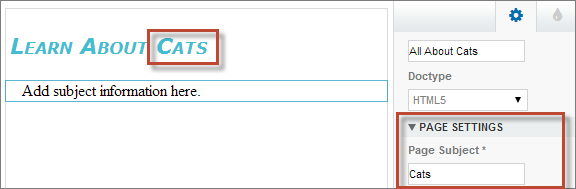
For example, let's say you add a content block to a template to contain the page’s heading. In this case, when users create a page from the template, you want to let them replace part of the text to suit their needs, but without letting them edit the entire content block.
By adding a custom property that’s called pageSubject and specifying an initial value, you can instead use the following expression in the content block:
Learn About
{!pageSubject}
This action lets team members rename any page that’s derived from the template by updating the Page Subject property in the page’s Properties pane, which automatically updates the value that’s represented by the {!pageSubject} expression.
Alternatively, let's say you want to create a YouTube widget using the following embed code:
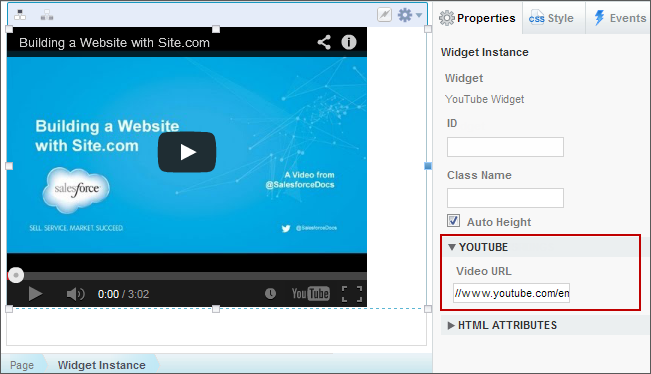
<iframe width="560" height="315" src="//www.youtube.com/embed/hcUaN6XBTz4" frameborder="0" allowfullscreen></iframe>However, you want users to specify which video to display when they add an instance of the widget to the page. In this case, you could create a section called YouTube, add a custom property labeled Video URL with videoURL as the expression name, and instead use the following code:
<iframe width="560" height="315" src="{!videoURL}" frameborder="0" allowfullscreen></iframe>Now, when users add the YouTube widget to the page, they can point to any video by updating the Video URL property in the YouTube section of the Properties pane, which automatically updates the value represented by the {!videoURL} expression.