
When working with style sheets, you can add style items, organize them into groups, and edit the CSS code directly.
Required Editions
| Available in: Salesforce Classic |
|
Available for purchase in: Enterprise, Performance, and Unlimited Editions Available (with limitations) in: Developer Edition |
| User Permissions Needed | |
|---|---|
| To build, edit, and manage Site.com sites: |
Site.com Publisher User field enabled on the user detail page AND Site administrator or designer role assigned at the site level |
Open a style sheet on the Overview tab by double-clicking it or hovering over it and
clicking  | Edit. The style sheet opens as a new tab.
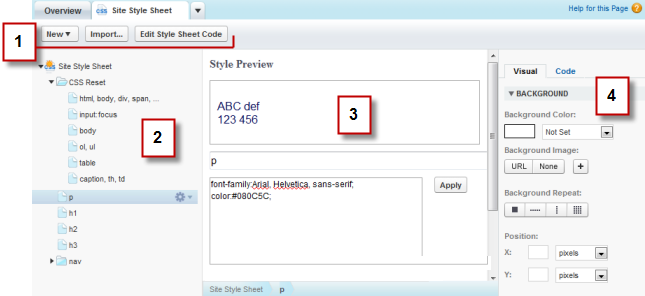
- Using the toolbar (1), you can import a style sheet and edit the style sheet's CSS code directly.
- Using the style sheet pane (2), you can:
- Create style items and groups
- Preview, edit, and delete style items
- Move style items and groups by dragging them to the correct location
- Add a CSS reset
- Using the Style Preview section (3), you can preview and manually edit a
selected style item.
 Note You can't preview at-rules, such as
@mediaor@font-face, in the Style Preview section. - Using the visual CSS editor (4), you can define the CSS properties for the selected style item.