
A panel is a useful layout tool that defines the logical divisions of your page and
lets you group page elements together for easy movement and positioning. Think of it as a
container for other page elements, including other panels, or as a div that wraps around the content placed within it. Panels are ideal for
adding editable areas to page templates.
Required Editions
| Available in: Salesforce Classic |
|
Available for purchase in: Enterprise, Performance, and Unlimited Editions Available (with limitations) in: Developer Edition |
| User Permissions Needed | |
|---|---|
| To build, edit, and manage Site.com sites: |
Site.com Publisher User field enabled on the user detail page AND Site administrator or designer role assigned at the site level |
When you create a page template or site page, you can use predefined page layouts that include headers, footers, and columns, which are created using panels. After it’s created, you can then further modify the layout to match your site's design.
If you need to add more divisions to the page and you're not familiar with CSS, the easiest method is to use row and column panels. This feature adds panels with predefined CSS positioning to ensure they align correctly on the page.

 ) and clicking Apply.
To add row and column panels to a page:
- Select the page (the top folder icon) in the Page Structure pane (
 ).
). - Click
 | Add Rows and Column Panels.
 - Select the number of row or column panels you require. If the page already contains content, it is placed in the first new panel.
To add a row panel:
- Above a panel, select the panel on the page or in the Page Structure pane and
click | Add Rows and Column Panels | Insert Row Above
- Below a panel, select the panel on the page or in the Page Structure pane and
click | Add Rows and Column Panels | Insert Row Below
To add row and column panels to another panel:
- Select the panel on the page or in the Page Structure pane.
- Click | Add Rows and Column Panels.
- Select the number of row or column panels you require. If the page already contains content, it is placed in the first new panel.
To add a single panel, drag a Panel from the Page Elements
pane ( )
onto the page.
)
onto the page.
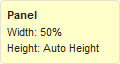
By default, the height of a panel automatically adjusts when you add content to it because its Auto Height property is enabled. You can disable the property to resize and reposition panels. If you hover over a panel on the page, an information popup appears that displays the width and height of the panel.
When you drag a page element onto a panel, the edges change color, indicating that the element is now grouped within it. To remove the element from the group, drag it outside the panel.