
When working with page templates and site pages, you can add content, structure, and style, all in one place.
Required Editions
| Available in: Salesforce Classic |
|
Available for purchase in: Enterprise, Performance, and Unlimited Editions Available (with limitations) in: Developer Edition |
| User Permissions Needed | |
|---|---|
| To build, edit, and manage Site.com sites: |
Site.com Publisher User field enabled on the user detail page AND Site administrator or designer role assigned at the site level |
Open a page or template on the Overview tab by double-clicking it or hovering over it
and clicking  | Edit. The page opens as a new tab.
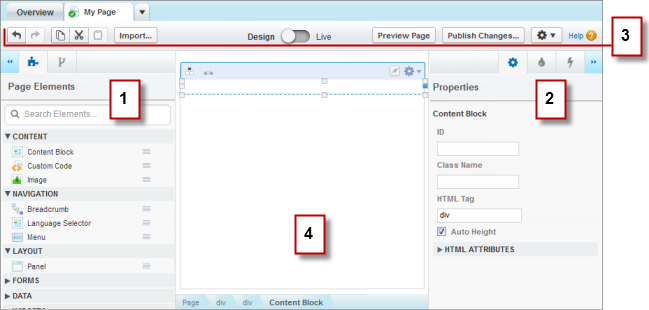
- Using the
 Page Elements and
  Page
Structure panes (1), you can search for and add page
elements to a page, and reorder the page element hierarchy.
Page
Structure panes (1), you can search for and add page
elements to a page, and reorder the page element hierarchy. - Using the
 Properties,
  Style,
and
Style,
and  Events panes
(2), you can set properties, add style,
and create events for a selected page or element.
Events panes
(2), you can set properties, add style,
and create events for a selected page or element. - Using the toolbar (3), you can:
- Undo and redo your actions.
- Cut, copy, or paste page elements.
- Import assets, such as images and files.
- Preview pages to see how they'll appear when live on different devices.
- Preview your site or generate an anonymous preview link to send to other users.
- Publish your recent changes.
- Access other page actions (
 ), such as renaming or deleting the page.
- On the page canvas (4), you can lay out the page and select, edit, and move page elements.

Tip
- Hide the side panes to increase the canvas size by clicking
 and
and  . To reopen a pane,
click its icon.
. To reopen a pane,
click its icon. - As you edit a page, your changes are saved and the status icon (
 ) on the page tab
is updated automatically.
) on the page tab
is updated automatically. - If the site page or page template is based on another template, editable page elements are highlighted with a blue border on the page.
- Site.com Page Templates Overview
Before you begin building the pages of your website, take some time to plan the pages you need, and in particular, which pages have a similar layout. When you've decided on the layout, the quickest method is to use a page template to build the basic layout. - Create Site.com Page Templates
A page template lets you define the layout and functionality of site pages in one location. By adding common page elements to the template and then basing site pages on it, you can achieve a consistent look and feel throughout your site. And because a template-based page inherits the template's elements, you can make site-wide changes from one location. - Create Editable Template Areas
As the template creator, you specify which elements users can edit in pages based on the template. - About Editable Page Elements
When you mark a page element as Editable on a page template, that page element becomes editable in any child pages or templates derived from the parent template. - Create Site.com Pages
As a site administrator or designer, when you create a site page, you can choose to base it on a layout or page template. - Identify Which Template a Site.com Page Uses
When you edit a template-based page, you can't modify its non-editable page elements. You also can't reposition, resize, or delete editable page elements, or alter the events, properties, or style associated with them. To update these elements or properties, you must edit them in the template the page is based on. - Rename, Duplicate, and Convert Pages
When working with pages and templates, you can perform common tasks, such as renaming, deleting, or duplicating pages. - Changing a Page's Doctype Property
The Document Type Definition (DTD) or doctype of a page defines which version of HTML it's using. This information is used by some browsers to trigger a standard rendering mode. By default, each page's doctype is set to HTML5, which is the latest version, but you can change it to XHTML 1.0.