Page elements are the building blocks of your site pages and page templates. Panel elements add structure to your pages. You can think of both pages and panels as “containers” for the page elements that you add to them.
Required Editions
| Available in: Salesforce Classic |
|
Available for purchase in: Enterprise, Performance, and Unlimited Editions Available (with limitations) in: Developer Edition |
| User Permissions Needed | |
|---|---|
| To build, edit, and manage Site.com sites: |
Site.com Publisher User field enabled on the user detail page AND Site administrator or designer role assigned at the site level |
If a site page or page template is based on another page template, you can only add page elements to editable panels, which are highlighted with a blue border on the page.
Pages, panels, data repeaters, and forms are “container” page elements, so you can add other page elements to them when the page is open.
- In the Page Elements pane (
 ), either:
- Drag the page element onto the page canvas or container page element.
- Click the page element, select where to place it in the popup that appears, and click Apply.
- In the Page Structure pane (
 ), hover
over a container page element and click
), hover
over a container page element and click  | Add Page Elements. Click the item you want to add or drag it onto the container
page element.
| Add Page Elements. Click the item you want to add or drag it onto the container
page element. - Select a container page element on the page and click | Add Page Elements. Click the item you want to add or drag it into the container
page element.
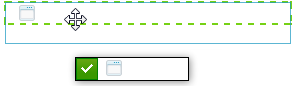
When you drag a page element into an editable panel, the page element displays a permitted icon and a green border shows where you're placing the element.
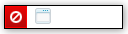
If you try dragging a page element into a panel that isn't editable, the page element displays a not-permitted icon.