
Site.com Studio lets you to create different language versions of your site. And because all languages are maintained within the site, you don't need to create and manage a separate site for each language.
Required Editions
| Available in: Salesforce Classic |
|
Available for purchase in: Enterprise, Performance, and Unlimited Editions Available (with limitations) in: Developer Edition |
As a site administrator or designer, you can add and manage the languages that you want your site to support. After you add a language to the site, you'll notice the Site.com Studio language selector on the toolbar, which lets you and your team switch between languages when editing the content of a page. This makes content editing quick and easy because you never have to leave the page to change to another language.
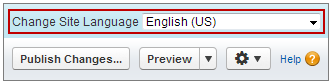
Contributors, designers, and site administrators can each add language-specific content to a page using the language selector.
As a site administrator or designer, you can also export site content as an .xml file and send it to your translation service. After you receive the edited file, simply import it back into your site to populate each page with the translated content.
In turn, to let your site visitors choose their preferred language from those available when viewing the site, you can add a Language Selector page element to your pages. And in case any part of the site content isn't available in their chosen language, you can specify a fallback language to display instead.

- Create a Multilingual Site
Creating a multilingual site is a multistep process. It involves defining the languages you want your site to support, adding translated content for each language, and letting your site visitors choose their preferred language. - Setting the Default Language
The default language is the language in which your site initially displays. By default, it's set to English (US), and it serves as the starting point when you add new languages. - Adding Languages
Add the languages you want your site to support. - Setting Language Options
After you add site languages in the Languages view, you can define separate settings for each one. - About Editing Language Content
The default language is the language in which your site initially displays. By default, it's set to English (US), and it serves as the starting point when you add new languages. So for example, if you build your site and then add French as a site language, the French version initially contains English (US) content until you replace it with French-specific content. - Edit Language Content on the Page
The Site.com Studio language selector lets you switch between languages as you edit content on each page. Contributors, designers, and site administrators can each add language-specific content to a page using the language selector. - Language-Aware Properties
Several properties in the Properties pane are language aware, meaning they can store different values for each language. - Exporting Language Content
Export one or more site languages as an .xml file that you can send to your translation service. - Importing Translated Content
You can import a translated .xml file back into your site after your translation service has completed the translations. - Adding a Language Selector Page Element
The language selector lets your site visitors choose their preferred language when viewing a site. - Deleting Languages
When you delete a language, the translated content is not actually deleted—it's just no longer available to your or your team. As soon as you add the language back to the site, you can access the translated content again.