
Use the Overview tab to import assets, preview the page, and update the appearance of the page.
Required Editions
| Available in: Salesforce Classic |
|
Available for purchase in: Enterprise, Performance, and Unlimited Editions Available (with limitations) in: Developer Edition |
| User Permissions Needed | |
|---|---|
| To edit only content in Site.com sites: |
Site.com Contributor User field enabled on the user detail page AND Contributor role assigned at the site level |
Open a site page on the Overview tab by double-clicking the page
or hovering over it and clicking  | Edit. The page opens
as a new tab.
| Edit. The page opens
as a new tab.
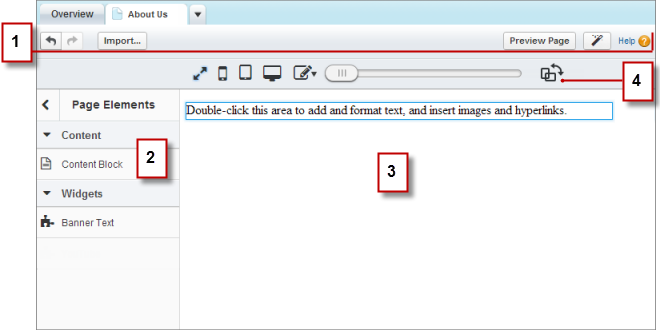
- Using the toolbar (1), you can:
- Undo and redo your actions.
- Import assets, such as images and files.
- Preview the page in a browser window.
- Update the appearance of the page using the Branding Editor.
- Using the Page Elements pane (2), you can drag content blocks and widgets (if available) to editable areas of the page.
- On the page canvas (3), you can edit page text and add images. If editable areas are available, you can drag page elements to the page.
- Using the live mode options (4), you can see how the page appears on various devices when the page is live.
- Create Site Pages as a Site.com Contributor
If your site administrator or designer has enabled page creation, you can add pages to your site. - Edit Content Blocks as a Contributor
Content blocks contain the text of your website pages, and can also house images and hyperlinks. As a contributor, you can edit the text in editable content blocks using an inline editor. Because you're editing the text inline, you always know exactly how the finished page looks when it's live. - Understand the Inline Editing Toolbar
As a contributor, you can use the inline editor to edit any editable text areas on the page. Editable areas display a gray border when you hover over the text. - Add Images to Text as a Contributor
As a contributor, you can quickly add images to any editable text areas on the page using an inline editor. - Attach Hyperlinks to Text and Images as a Contributor
As a contributor, you can use the inline editor to quickly add hyperlinks to text or images in any editable text areas on the page. - Add Page Elements to Pages as a Contributor
As a contributor, you can add page elements to any editable areas of a page.