
As a contributor, you can add page elements to any editable areas of a page.
Required Editions
| Available in: Salesforce Classic |
|
Available for purchase in: Enterprise, Performance, and Unlimited Editions Available (with limitations) in: Developer Edition |
| User Permissions Needed | |
|---|---|
| To edit only content in Site.com sites: |
Site.com Contributor User field enabled on the user detail page AND Contributor role assigned at the site level |
Page elements are the building blocks of site pages. Content blocks contain the text of your website pages and can house images and hyperlinks. Widgets are custom page elements that are created by your designer or site administrator. If you can't see widgets, they're not available to you.
-
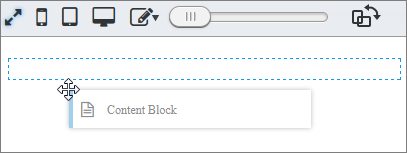
To add a page element to an open page, drag the element from the Page Elements
pane to an editable area. When you drag a page element to an editable page area,
the area is highlighted with a blue border. If you can't see a blue border, the
page doesn't have any editable areas.
-
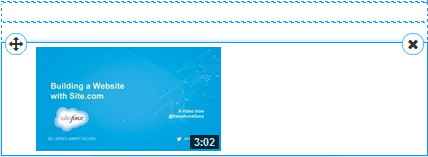
To move a page element on the page, drag the page element to another editable
area.
-
To delete a page element, click
 .
.
After you add a content block to a page, double-click the content block to edit it.
When you add a widget to the page, you need to specify properties for the widget in a dialog box, which automatically saves your changes. To dismiss the dialog box, click another area of the screen. For more information about the properties, contact your designer or site administrator.