
Content lists let you create and store content items to use in your site, such as press releases, blog posts, and news articles. Categories let you create groups of terms to classify the items in your content lists.
Required Editions
| Available in: Salesforce Classic |
|
Available for purchase in: Enterprise, Performance, and Unlimited Editions Available (with limitations) in: Developer Edition |

Note Content lists and categories are currently available through a
pilot program. For information on enabling content lists and categories for your organization,
contact Salesforce.
Content lists and categories form part of your site’s content. Combined, they integrate with data-bound page elements to let you create pages such as blogs and event lists for your site, and dynamically filter content by category or any other field.
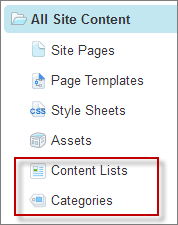
With content lists:
- You can create custom content lists by adding the field types and field properties you need.
- You get in-context editing. There’s no need to leave Site.com Studio to add or update content.
- Contributors can easily create and edit content items in the Content Lists view.
- You explicitly publish updated content lists to the live site, so changes only go live when you want them to.
- You don’t need to set access permissions to allow site visitors to view content, because the content lists are part of the site.
- You don’t have to store relative URLs. Simply access the site’s images and assets directly using rich text fields.
- Creating Content Lists
Create content lists to store site content such as blogs or articles that you can display dynamically on your site pages. - Understanding the Content List's Editing View
When editing a content list, you can add and edit fields, and create and manage records all in one place. - Editing, Deleting, and Duplicating Content Lists
In the Content Lists view on the Overview tab, you can manage your site's content lists. - Adding and Editing Content List Fields
As a site administrator or designer, you can add fields to a content list and edit field properties to suit your needs. - Content List Field Types
These field types are available to you when you create or edit a content list. You can add any combination of fields to a content list. - Content List Field Properties
When adding or editing fields in a content list, use the options in the Properties pane to control how the selected field functions. - Add Records to a Content List
After you've created a content list and added fields to it, you're ready to add content items. - Editing, Deleting, and Duplicating Content List Records
Each content item in a content list is stored as a record that you can edit, delete, and duplicate. - Importing Records into Content Lists
Import records from existing press releases, articles, or blogs into your site’s content lists. For example, if you have a blog that’s hosted elsewhere, you can export the blog’s posts and then import the contents to use in your site. - Content List XML Format
To import records into a content list in Site.com Studio, you must create an XML file that consists of these elements. - Sample Content List XML File
This XML code makes up a sample XML file for importing records into a content list. In this case, the content list has two text fields called Title and Author, and a number field called Rank. - Create Categories and Terms
Categories let you create groups of terms that you can use to classify the items in your site's content lists. - Editing and Deleting Categories and Terms
In the Categories view on the Overview tab, you can update and delete your site’s categories and the terms they contain.