
When editing a content list, you can add and edit fields, and create and manage records all in one place.
Required Editions
| Available in: Salesforce Classic |
|
Available for purchase in: Enterprise, Performance, and Unlimited Editions Available (with limitations) in: Developer Edition |
| User Permissions Needed | |
|---|---|
| To build, edit, and manage Site.com sites: |
Site.com Publisher User field enabled on the user detail page AND Site administrator or designer role assigned at the site level |
| Available in: Salesforce Classic |
|
Available for purchase in: Enterprise, Performance, and Unlimited Editions Available (with limitations) in: Developer Edition |
When you create or edit a content list, it opens as a new tab. Depending on whether
you select  | Edit Fields or | Edit Records on the Overview tab, the content list opens in the fields view or the records view. If the
content list doesn't yet have any fields, it opens in the fields view by
default.
| Edit Fields or | Edit Records on the Overview tab, the content list opens in the fields view or the records view. If the
content list doesn't yet have any fields, it opens in the fields view by
default.
The Fields View
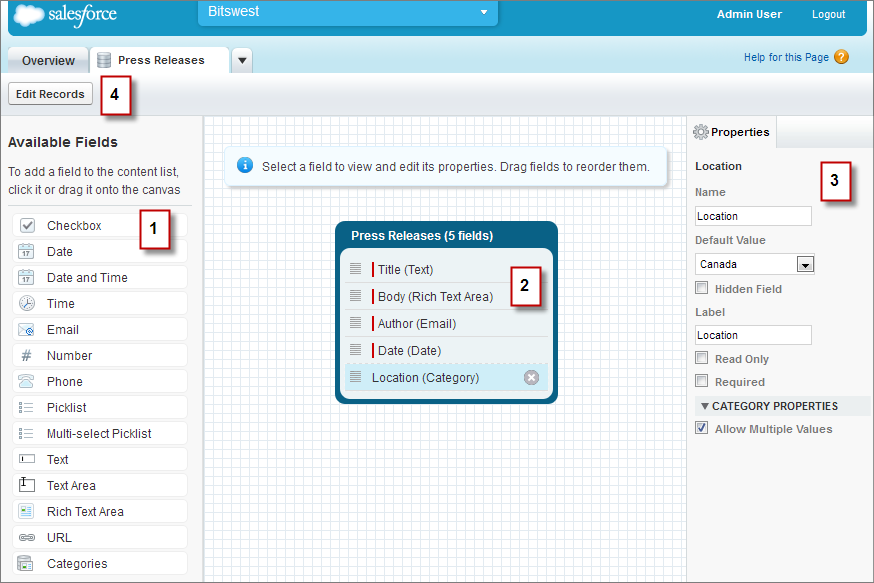
In the fields view, you can:
- Use the Available Fields pane (1) to add fields to the content list.
- Rearrange fields on the page canvas (2) by dragging them to the correct location.
- Use the Properties pane (3) to modify the properties of a selected field.
- Use the toolbar (4) to switch to the records view. You can't open the records view until you add fields to the content list.
The Records View
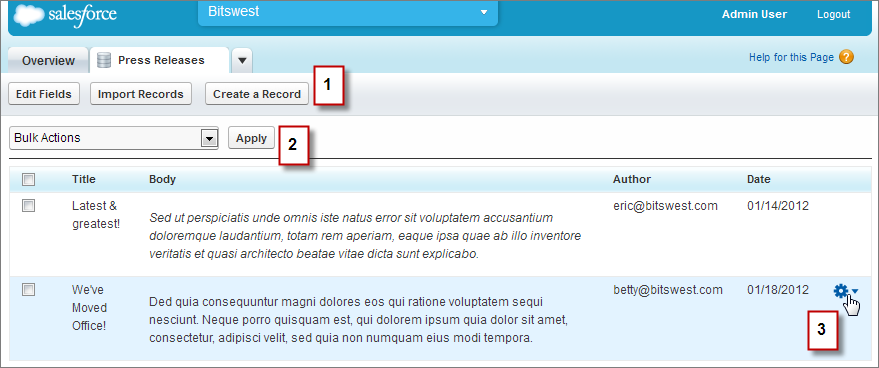
In the records view, you can:
- To create records, import records, and switch to the fields view, use the toolbar (1).
- To delete multiple selected records, use the Bulk Actions menu (2).
- To edit, delete, or duplicate the
record, use the record's menu (3).